QR Code Menu for Restaurants: 10-Minute Setup
You run a café. When someone sits down, you hand them a laminated menu that's seen better days — the kind with the coffee stain in the corner that's been there since 2019. Meanwhile, the taco place two streets over

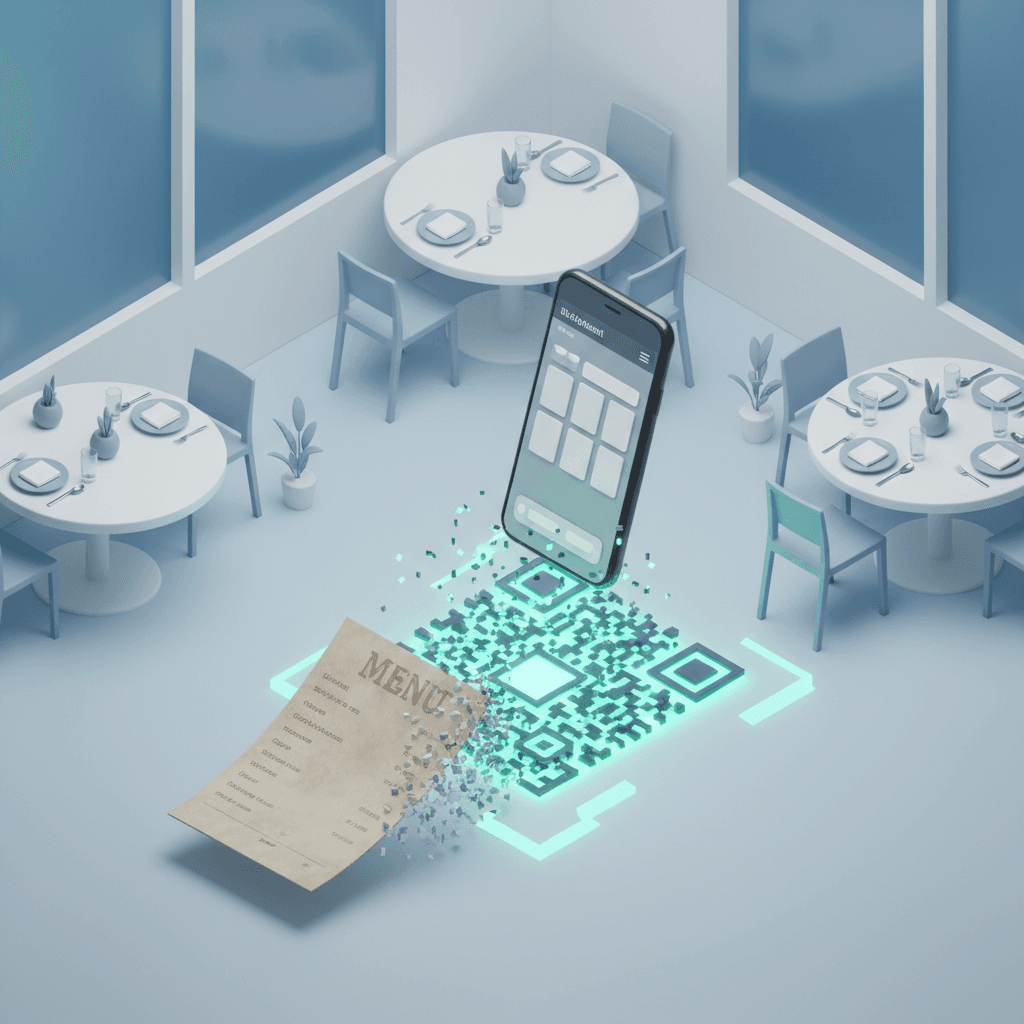
You run a café. When someone sits down, you hand them a laminated menu that's seen better days — the kind with the coffee stain in the corner that's been there since 2019. Meanwhile, the taco place two streets over has a little tent card on every table with a QR code. Guests scan it, see the full menu with photos, and order. No menus to wipe. No reprints when the specials change.
Getting from your laminated menu to a live digital menu QR code doesn't take a developer, a monthly subscription, or a whole afternoon. It takes about 10 minutes.
Key Takeaways:
- You can have a live QR code menu on your tables today — even without a website
- AI builds the menu page in under 5 minutes from a simple description
- QR code generation is free; the only cost is printing
- Update prices and specials anytime — no reprinting required
In This Article
- Why QR Menus Are No Longer Optional
- What You Need Before You Start
- Step 1: Build Your Digital Menu Page
- Step 2: Generate Your QR Code
- Step 3: Test on a Real Phone
- Step 4: Print and Place
- How to Update Without Reprinting
- Want to Know Who's Scanning?
- 3 Mistakes That Kill QR Menus
- Frequently Asked Questions
Why QR Menus Are No Longer Optional
QR menus went from "nice to have" to table stakes fast. 57% of businesses are increasing QR code investment in 2026, with restaurants leading adoption. QR menu use by US restaurants grew 150% in the past two years. And 59% of smartphone users scan QR codes every day — your guests already know how.

The part that should get your attention: restaurants with QR menus see 15% faster table turnover. On a busy Friday night, that's real money.
What You Need Before You Start
Not much, honestly:
- Your dishes and prices (or just a photo of your current menu)
- Your restaurant's name and address
- 10 minutes
No website. No domain. No coding skills required.
Step 1: Build Your Digital Menu Page (3 min)
Most guides tell you to sign up for a dedicated tool like MenuTiger or OddMenu. Those work, but you end up on a generic template that looks like every other restaurant's menu.

A better approach: describe your menu to AI, get a page that actually looks like you. Here's the prompt format that works — edit it with your real cuisine and dishes, then hit go:
Fardino builds and hosts the page, giving you a live URL. That URL is what your QR code will point to. Copy it — you'll need it in the next step.
If you want a full restaurant website while you're at it — reservations, a photo gallery, Google Maps — the same AI-based approach takes roughly 10 minutes total. But for today, your menu URL is all you need.
Step 2: Generate Your QR Code (1 min)
Once you have your menu URL, the QR code takes 60 seconds. Three free options that actually work:
| Tool | Best For | Cost |
|---|---|---|
| QR Code Generator | Simple, no signup needed | Free |
| QRCode Monkey | Custom colors to match your brand | Free |
| OddMenu | Menu-focused, QR included | Free tier |
Paste your URL, download, done.
One thing nobody mentions: download the SVG version, not just the PNG. SVG scales to any print size without getting blurry — and when you put that QR on a 4-inch table tent, blurry doesn't scan.
Step 3: Test on a Real Phone (2 min)
Before you print anything, test the QR code on an actual phone. Not your phone — grab someone else's. Test it at your actual table, in your actual lighting.
Common failure points:
- QR too small (minimum 2cm × 2cm for reliable scanning)
- Low contrast — a light QR on a light background is invisible
- Menu page loads slowly on mobile data
If it scans in under 2 seconds in your dim dining room, you're good.
Step 4: Print and Place (4 min)
You don't need a print shop to get started. A home printer on cardstock works for testing and even for permanent placements.
| Format | Best For | Printing Cost | Durability |
|---|---|---|---|
| Table tent | Sit-down dining, bar tables | Low — home printer + cardstock | Replace monthly |
| Sticker | Attaching to existing menus, windows, takeaway bags | Very low — label paper | High |
| Counter card | Host stand, bar tops, takeaway counter | Low–Medium | High |
Keep the design simple: your restaurant name, the QR code, and "Scan to see our menu." That's genuinely all your guests need to know.
How to Update Without Reprinting
This is the part that saves you money long-term. The QR code is just a pointer to a URL. The URL never changes. You update the page, and every single QR code in your restaurant instantly shows the new menu.
Changed your happy hour drinks? Added a seasonal pasta? Edit the menu page, save, done. No crossing out old prices with a pen. No "sorry, that item is actually unavailable" conversations.
Want to Know Who's Scanning?
Once your QR is live, you might wonder: is anyone actually using this thing? The free tools above don't give you scan counts — but there's a simple workaround.
Before you generate your QR code, run your menu URL through a shortener with built-in analytics. Bitly is the most common option — paste your Fardino URL, get a short link (e.g. bit.ly/cafe-menu), then generate your QR code pointing to that short link instead.
From your Bitly dashboard you'll see how many clicks the link gets per day, what devices people are using, and even a rough location breakdown. It takes an extra 30 seconds and it's completely free.
Why does this matter? If you add a second QR location — say, a sticker on your front window — create a second Bitly link for it. Now you know which placement drives more scans. That's data worth having before you order 200 stickers.
3 Mistakes That Kill QR Menus
1. Pointing the QR to a PDF
PDFs don't resize for mobile. Your guests will spend 30 seconds pinching and zooming before giving up. A proper web page loads instantly and looks right on any screen.
2. Ignoring your lighting
A QR code on a dark wooden table in a candlelit restaurant is basically invisible. Mount it on a table tent or use a light-colored card stand. Test it in the actual light conditions of your space.
3. No fallback for guests without smartphones
Some guests — especially older ones — don't scan QR codes. Keep a few physical menus behind the host stand. The digital menu and paper menu can coexist happily.
Your Next Step
A standalone digital menu page is a great start. When you're ready to add online reservations, a photo gallery, and a proper contact page, build out a full restaurant website with reservations — it usually takes an afternoon. For the complete playbook on getting any small business online with AI, the AI website builder for small business guide covers everything from domain to Google visibility.
You Might Also Like
- Build a Restaurant Website in One Afternoon — Add reservations, a gallery, and Google Maps to build out your full restaurant site.
- No Code AI Website: Build Without Writing Code — If today's tutorial sparked ideas for other pages, here's the full no-code workflow for any type of business site.
- The Small Business Website Playbook — The complete guide for getting any small business online with AI, from domain to launch.
Frequently Asked Questions
Do I need a website to have a QR code menu?
No. You just need a URL — a single hosted menu page is enough. AI builders like Fardino can create and host a standalone menu page in a few minutes, no domain purchase required.
Can I create a QR code menu for my restaurant for free?
Yes. The menu page (Fardino's free tier) and the QR code itself (QR Code Generator, QRCode Monkey) are both free. You only pay if you need advanced features like per-scan analytics.
How do I update my QR menu without reprinting?
Since the QR code points to a URL, you update the page and all menus update instantly. The physical QR code is just a link — it never needs to change.
What size should my QR code be?
Minimum 2cm × 2cm for reliable indoor scanning. 5cm × 5cm is safer for table tents. Always use SVG format so it prints sharp at any size.
What if some customers don't want to use a QR code?
Keep a few physical menus available behind the host stand. QR menus work alongside paper menus — you don't have to replace one with the other, and guests who prefer a physical menu will appreciate you kept them.
Written by the 0xMinds Team — we test AI tools so you don't have to. Build a website with AI →
Got an idea? Build it now.
Describe the site or app you want — Fardino turns it into a live website.