AI Chart Prompts That Actually Work (25+ Templates)
Here's a truth bomb: AI is terrible at charts. I've spent the last month generating data visualizations with every AI tool I could find, and roughly 70% of the output was unusable garbage. Missing axes, legends floating in space, colors

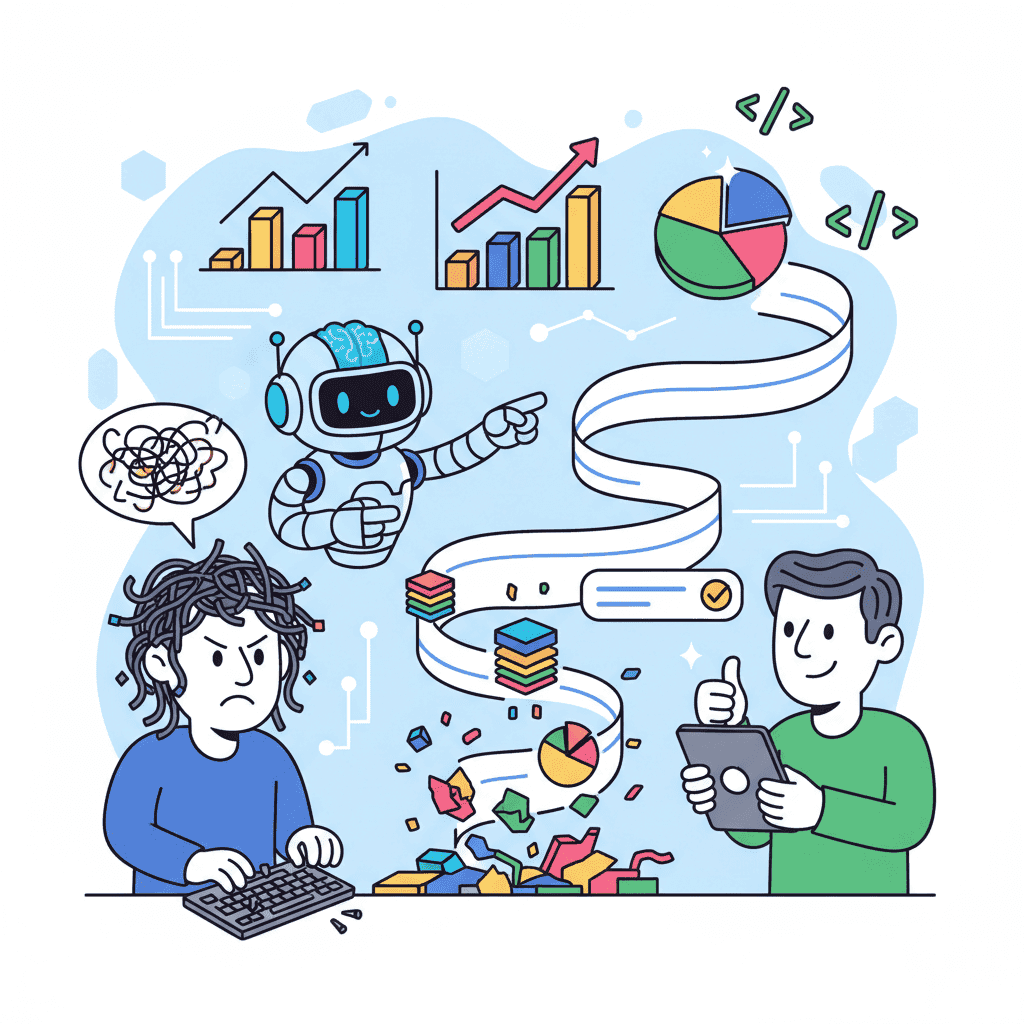
Here's a truth bomb: AI is terrible at charts.
I've spent the last month generating data visualizations with every AI tool I could find, and roughly 70% of the output was unusable garbage. Missing axes, legends floating in space, colors that look like a fever dream—the list goes on.
But here's the thing. Once I figured out why AI struggles with charts, I cracked the code. And now I'm going to hand you the exact prompts that work, so you don't have to waste weeks like I did.
Key Takeaways:
- AI defaults to broken charts because prompts lack data structure and styling specifics
- The "Data-Layout-Style" framework solves 90% of chart generation problems
- Line, bar, and pie charts each need different prompt patterns to render correctly
- Interactive features (tooltips, legends) require explicit instructions—AI won't assume
In This Article
- Why AI Struggles with Charts
- The Chart Prompt Framework
- Line Chart Prompts
- Bar Chart Prompts
- Pie & Donut Charts
- Area Charts
- Dashboard Combinations
- Interactive Features
- Responsive Layouts
- Common Mistakes
- FAQ
Why AI Struggles with Charts
Let's get one thing straight: the problem isn't the AI model. It's how we communicate with it.

When you ask AI to generate a landing page, there's decades of design convention to draw from. Headers go at the top, footers at the bottom, CTAs are buttons—predictable stuff.
Charts? Different story entirely.
A "line chart" could mean anything. Revenue over time? User signups? Temperature readings? The data structure, axis labels, scale, and color scheme all change based on context. And without that context, AI just... guesses.
Here's what happens when you type "Create a line chart for my dashboard":
| What You Expect | What You Get |
|---|---|
| Smooth trend line with axis labels | Unlabeled axes, random scale |
| Nice color palette | Default blue everything |
| Responsive container | Fixed 400px width |
| Interactive tooltips | Static image |
| Proper legend | Either missing or blocking data |
The solution? Give AI the context it needs upfront.
The Chart Prompt Framework That Actually Works
After testing way too many prompts, I landed on a framework I call Data-Layout-Style (DLS). Every chart prompt needs three things:
- Data Structure: What data, what format, how many points
- Layout: Chart type, dimensions, axis configuration
- Style: Colors, fonts, interactive states
Here's the template:
This framework works because it eliminates guessing. AI knows exactly what you want.
Want to try this yourself?
Line Chart Prompts for Trends and Time Series
Line charts are the bread and butter of dashboards. They're also where AI messes up most frequently.

Basic Line Chart
Multi-Line Comparison Chart
This is where most prompts fall apart. You need to be explicit about line differentiation:
The "One Line Per Request" Rule
Here's a controversial opinion: if you need more than 3 lines on a chart, you're probably doing it wrong.
Seriously. Five-line charts look like spaghetti even when humans design them. With AI? Forget it. The colors clash, the legend becomes a wall of text, and no one can read it anyway.
Stick to 3 lines max. If you need more data, use multiple charts in a grid layout instead.
Bar Chart Prompts for Comparisons
Bar charts seem simpler than line charts, but they have their own gotchas. Especially with labels.
Vertical Bar Chart
Horizontal Bar Chart (For Long Labels)
Use this when your category names are too long for vertical display:
Grouped vs. Stacked (Choose Wisely)
People ask me this all the time: "Should I use grouped or stacked bars?"
Here's my take: grouped for comparison, stacked for composition.
- Grouped: When you want to compare values directly (this month vs. last month)
- Stacked: When you want to show parts of a whole (revenue by product category)
Pie and Donut Chart Prompts
Hot take: pie charts are overused. But when used correctly—showing proportions of a whole—they're actually perfect.
Basic Donut Chart (Not Pie)
I'll die on this hill: donut charts are better than pie charts. The center space lets you add context like totals or labels.
When NOT to Use Pie Charts
If you have more than 6 categories, use a bar chart instead. Seven slices of pie is just visual noise.
Area Chart Prompts for Cumulative Data
Area charts shine for showing cumulative totals or comparing volume over time.
Stacked Area Chart
Combined Dashboard Charts
Real dashboards never have just one chart. Here's how to prompt for multiple charts in harmony.
Analytics Dashboard Grid
This kind of combined prompt works because you're giving AI the full context. It knows these charts need to work together.
For a full dashboard system, check out our SaaS dashboard guide.
Interactive Chart Features That Matter
Static charts are fine for reports. For web apps? You need interactivity.
Tooltip Configuration
Legend Interactions
Responsive Chart Layouts
Here's what 90% of tutorials miss: charts need to work on mobile too.
Common Chart Prompt Mistakes
I see these constantly. Don't do them.
| Mistake | Why It Fails | What To Do Instead |
|---|---|---|
| No sample data | AI invents random numbers | Provide realistic ranges and format |
| "Make it pretty" | Too vague, AI interprets randomly | Specify exact colors and spacing |
| Forgetting units | Axes show raw numbers | Always specify "$", "K", "%" etc. |
| Ignoring mobile | Charts break on small screens | Include responsive requirements |
| Too many data points | Chart becomes unreadable | Limit to 12 max for lines, 8 for bars |
| No hover state | Static, lifeless charts | Always specify tooltip behavior |
The biggest mistake? Not testing with real data. That chart looks fine with 5 data points. Try 50.
Quick Reference: Chart Type Selection
Not sure which chart to use? Here's your cheat sheet:
| Data Type | Best Chart | When to Use |
|---|---|---|
| Time series | Line | Trends over time |
| Comparisons | Bar | Discrete category values |
| Proportions | Donut | Parts of a whole |
| Cumulative | Stacked Area | Volume over time |
| Distribution | Histogram | Frequency data |
| Correlation | Scatter | Relationship between variables |
You Might Also Like
- Build a SaaS Dashboard with AI - Full dashboard workflow with charts
- AI Data Table Prompts - Sortable, filterable tables that work
- AI Dashboard Prompts: 40+ Templates - Admin panel prompt collection
Frequently Asked Questions
What's the best library for AI-generated charts?
Recharts wins for vibe coding, hands down. It's React-native, has a declarative API that AI understands well, and the documentation is solid. Victory and Chart.js work too, but Recharts consistently generates cleaner code in my testing.
How many data points should I include in my prompt?
For line charts, 6-12 points works best. Bar charts, stick to 5-8 categories max. More than that and you need pagination or scrolling, which adds complexity AI often botches.
Why do my charts look different every time?
AI is non-deterministic—same prompt, different output. Lock down specifics like exact colors (hex codes), exact dimensions (pixels), and exact spacing. The more specific, the more consistent.
Can I generate real-time updating charts with AI?
You can generate the chart structure, but real-time data connections need manual wiring. Ask AI to include a data prop that you can update, then connect it to your data source separately.
How do I add animation to AI charts?
Recharts has built-in animation props. In your prompt, add: "Include isAnimationActive with 800ms duration and ease-in-out easing." For custom animations, you'll need Framer Motion integration—check our animation prompts guide.
Written by the Fardino Team. We build AI tools for frontend developers. Build with Fardino →
<!-- SCHEMA_DATA { "article": { "@type": "Article", "headline": "AI Chart Prompts That Actually Work (25+ Templates)", "description": "I tested 40+ chart prompts and most generated broken Recharts. Here's the exact prompts that produce dashboards worth shipping.", "author": { "@type": "Organization", "name": "Fardino", "url": "https://fardino.com" }, "datePublished": "2025-12-29", "dateModified": "2025-12-29" }, "faq": [ { "question": "What's the best library for AI-generated charts?", "answer": "Recharts wins for vibe coding, hands down. It's React-native, has a declarative API that AI understands well, and the documentation is solid. Victory and Chart.js work too, but Recharts consistently generates cleaner code." }, { "question": "How many data points should I include in my prompt?", "answer": "For line charts, 6-12 points works best. Bar charts, stick to 5-8 categories max. More than that and you need pagination or scrolling, which adds complexity AI often botches." }, { "question": "Why do my charts look different every time?", "answer": "AI is non-deterministic—same prompt, different output. Lock down specifics like exact colors (hex codes), exact dimensions (pixels), and exact spacing. The more specific, the more consistent." }, { "question": "Can I generate real-time updating charts with AI?", "answer": "You can generate the chart structure, but real-time data connections need manual wiring. Ask AI to include a data prop that you can update, then connect it to your data source separately." }, { "question": "How do I add animation to AI charts?", "answer": "Recharts has built-in animation props. Add 'Include isAnimationActive with 800ms duration and ease-in-out easing' to your prompt. For custom animations, you'll need Framer Motion integration." } ], "howto": { "name": "How to Generate Charts with AI Prompts", "steps": [ {"name": "Define your data structure", "text": "Specify the data format, sample values, and number of data points clearly in your prompt."}, {"name": "Specify the layout", "text": "Include chart type, dimensions, axis labels, and legend position."}, {"name": "Add styling details", "text": "Define exact colors using hex codes, hover states, and tooltip behavior."}, {"name": "Include responsive requirements", "text": "Specify how the chart should adapt for mobile and tablet screens."}, {"name": "Test and iterate", "text": "Generate the chart, test with realistic data, and refine your prompt based on results."} ] }, "breadcrumb": ["Home", "Blog", "Guides", "AI Chart Prompts That Actually Work"] } SCHEMA_DATA -->Got an idea? Build it now.
Describe the site or app you want — Fardino turns it into a live website.