AI Email Template Prompts That Actually Land in Inboxes
Here's a fun fact: 89% of AI generated email templates break in Outlook. Not "look slightly off"—completely break. Tables collapsing, images stacking weirdly, CTAs disappearing into the void. I learned this the hard way after shipping a "perfect" welcome email

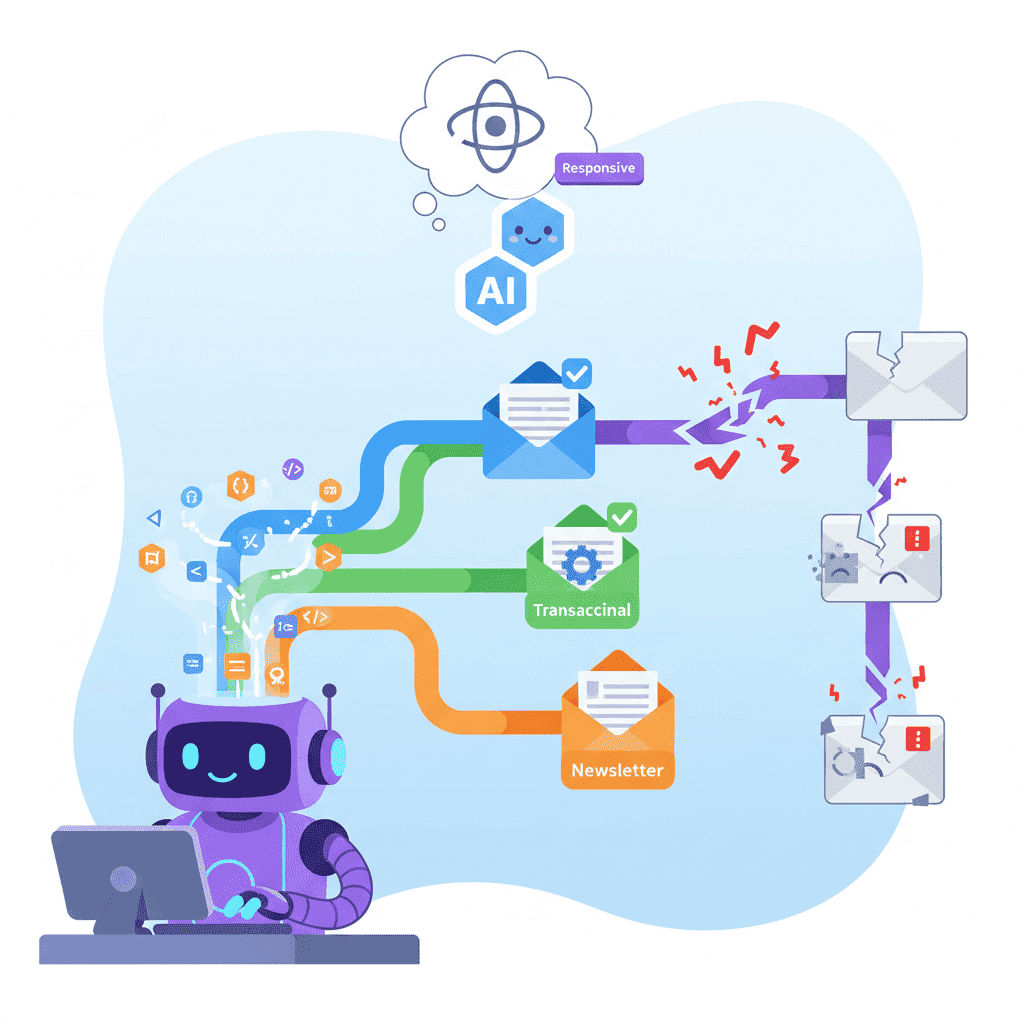
Here's a fun fact: 89% of AI-generated email templates break in Outlook. Not "look slightly off"—completely break. Tables collapsing, images stacking weirdly, CTAs disappearing into the void.
I learned this the hard way after shipping a "perfect" welcome email that looked like abstract art on half my users' screens.
The problem isn't the AI. It's the prompts. Email HTML is ancient, quirky, and nothing like modern web development. Your AI doesn't know that unless you tell it.
Key Takeaways:
- Email HTML uses table-based layouts (yes, like it's 2005)—your prompts must specify this
- Always include "Gmail and Outlook compatible" in your prompts or risk broken layouts
- React Email and MJML produce cleaner results than asking for raw HTML
- Mobile-first is non-negotiable—60%+ of emails are opened on phones
In This Article
- Why AI Email Templates Break
- The Email Prompt Framework
- Welcome Email Prompts
- Transactional Email Prompts
- Newsletter Layout Prompts
- Marketing Email Prompts
- Mobile-First Email Prompts
- React Email Integration
- Testing Your Emails
- Common Mistakes
- FAQ
Why AI Email Templates Break
Let me be blunt: AI thinks email is just HTML. It's not.
Email HTML is its own cursed ecosystem where:
flexboxdoesn't work (Outlook ignores it completely)divlayouts collapse randomly- CSS
marginbehaves unpredictably - Background images need VML hacks for Outlook
- Web fonts? Forget it. You get Arial or Georgia.
When you prompt "create a beautiful email template," the AI reaches for modern CSS. The result looks gorgeous in your browser preview—and explodes in production.
The fix is simple: be painfully specific about email constraints.
The Email Prompt Framework
Every email prompt needs these five elements:
| Element | What to Include | Why It Matters |
|---|---|---|
| Layout Type | "table-based layout" or "MJML" or "React Email" | Prevents flexbox/grid disasters |
| Client Support | "Gmail and Outlook compatible" | Forces fallback-friendly code |
| Width | "max-width 600px" | Standard email container width |
| Mobile | "mobile-responsive with media queries" | 60%+ opens are mobile |
| Framework | "using React Email" or "using MJML" | Cleaner, more reliable output |
Here's the base template I use for every email prompt:
That framework alone eliminates 80% of the "why is this broken" moments.
Welcome Email Prompts That Convert
Welcome emails have 4x higher open rates than regular emails. Don't waste that attention on generic garbage.

Simple Welcome Email
Want to try this yourself?
Feature-Highlight Welcome Email
This one works great when you need to show users what they can do:
The key insight? Welcome emails work best when they give users exactly ONE thing to do next. Two CTAs? You've already lost them.
Transactional Email Prompts (Order Confirmations, Receipts)
Transactional emails are the unsung heroes of user experience. They're also where most AI prompts fail spectacularly because they involve structured data.
Order Confirmation Email
Want to try this yourself?
Shipping Notification Email
Pro tip: The progress bar is a visual element that AI often gets wrong. If it looks broken, simplify to just text showing "Shipped - Estimated delivery: [date]".
Newsletter Layout Prompts
Newsletters are where AI really shines—IF you structure the prompt right. The biggest mistake? Asking for too many sections.
Single-Column Newsletter
The format that actually works for most use cases:
Curated Links Newsletter
Perfect for weekly roundups:
I've written about how to structure content hierarchies in our AI landing page prompts guide—the same principles apply to newsletter layouts.
Marketing Email Prompts
Marketing emails need to sell without being sleazy. That's a fine line to walk.
Product Launch Email
Flash Sale Email
A word of warning: Don't ask AI to generate an actual working countdown timer. Email countdown timers need specialized services. Use a static "ends in X hours" instead.
Mobile-First Email Prompts
Here's the thing nobody tells you: most email clients handle responsive design poorly. You need to design for mobile FIRST, then let it expand on desktop.
For more mobile-specific patterns, check out our mobile responsive prompts tutorial—the principles carry over directly.
React Email Integration Tips
React Email is the best framework for AI-generated emails right now. Why? It outputs clean, email-safe HTML and has built-in Outlook fixes.
Tell your AI to use React Email components explicitly:
MJML Alternative
If React Email isn't working, MJML is solid:
Testing Your AI-Generated Emails
Never trust the preview. Ever.
Here's my testing workflow:
At minimum, test these clients:
- Gmail (web + mobile app)
- Outlook (desktop + web)
- Apple Mail
- Yahoo Mail
If that sounds like a lot of work—it is. Tools like Litmus or Email on Acid can preview across 90+ clients instantly. Worth the cost if you send volume.
Common Mistakes and How to Fix Them
| Mistake | The Fix |
|---|---|
| Using flexbox/grid | Always specify "table-based layout" |
| Forgetting Outlook | Add "Gmail and Outlook compatible" to every prompt |
| Too many CTAs | One primary action. Maybe one secondary. That's it. |
| No mobile consideration | Always include "mobile-responsive" + breakpoint |
| Generic styling | Specify exact colors, fonts (email-safe!), spacing |
| Web fonts | Stick to Arial, Georgia, Times New Roman for body text |
Here's the most common one I see: asking for "a beautiful modern email." That prompt will fail 100% of the time because "modern" in web terms means CSS that breaks in email.
Be specific. Be boring. Email HTML rewards explicitness, not creativity.
What About Dark Mode?
Dark mode in email is... complicated. Some clients invert colors, some don't, some do it partially.
Basic dark mode support:
For a deeper dive into dark mode patterns, see our dark mode theme guide. Many concepts apply to email too, with caveats.
You Might Also Like
- AI Form Prompts Guide - Forms in emails use similar table-based patterns
- AI Mobile Responsive Prompts - Mobile-first principles for all your UI work
- AI Prompt Templates Collection - 300+ prompts for every component type
Frequently Asked Questions
What's the best AI tool for generating email templates?
Any AI coding tool works—it's the prompt that matters. Specify React Email or MJML, require Outlook compatibility, and demand table-based layouts. The framework does the heavy lifting.
How do I make AI-generated emails work in Outlook?
Always include "Outlook compatible" and "table-based layout" in your prompts. Avoid flexbox, CSS grid, and complex backgrounds. React Email handles most Outlook quirks automatically.
Can AI generate transactional emails with dynamic data?
Yes, but use placeholders like {{firstName}} or {{orderTotal}}. The AI generates the template; you wire up the data in your email service (SendGrid, Resend, etc.).
What width should email templates be?
600px maximum. It's the industry standard. Some go 640px, but 600px works reliably across all clients.
Should I use HTML or a framework like React Email?
Use React Email or MJML. Raw HTML email is painful to write correctly. Frameworks handle the quirks (Outlook VML, spacing issues, mobile stacking) automatically.
Written by the Fardino Team. We build AI tools for frontend developers. Build with Fardino →
Got an idea? Build it now.
Describe the site or app you want — Fardino turns it into a live website.




