AI UI Prompts: 300+ Templates That Actually Work (2026)
You type "create a landing page" into your AI tool. What comes out looks like it was designed by a committee in 2015. Sound familiar? Here's the truth nobody wants to admit: most people are using AI UI generation completely


You type "create a landing page" into your AI tool. What comes out looks like it was designed by a committee in 2015. Sound familiar?
Here's the truth nobody wants to admit: most people are using AI UI generation completely wrong. They blame the tool when the problem is their prompt. A vague prompt produces vague output. A specific prompt produces something you can actually ship.
I've spent the last year testing, refining, and cataloging over 300 AI prompts for every UI component you'll ever need. The ones in this guide aren't theoretical—they're battle-tested templates that produce production-ready code on the first try.
This is your complete reference. Bookmark it. Share it. Stop reinventing the wheel every time you need a new component.
Key Takeaways
- Specificity wins: Prompts with layout, style, and behavior details outperform vague requests by 10x
- The 5-element formula: Component + Layout + Visual Style + Content + Technical Specs = consistent results
- Copy-paste ready: Every category includes prompts you can use immediately with Fardino, v0, Lovable, or Cursor
- 300+ templates: Covers every major UI pattern from hero sections to dark mode toggles
- Organized by use case: Find what you need in seconds, not hours
Table of Contents
- How to Use This Prompt Collection
- The Anatomy of a Good AI Prompt
- Page-Level Components
- Navigation Components
- Form Components
- Data Display
- Feedback Components
- Advanced Components
- The Prompt Formula Cheat Sheet
- Frequently Asked Questions
- Related Guides
How to Use This Prompt Collection
This isn't a guide you read cover-to-cover. It's a reference you'll return to dozens of times.
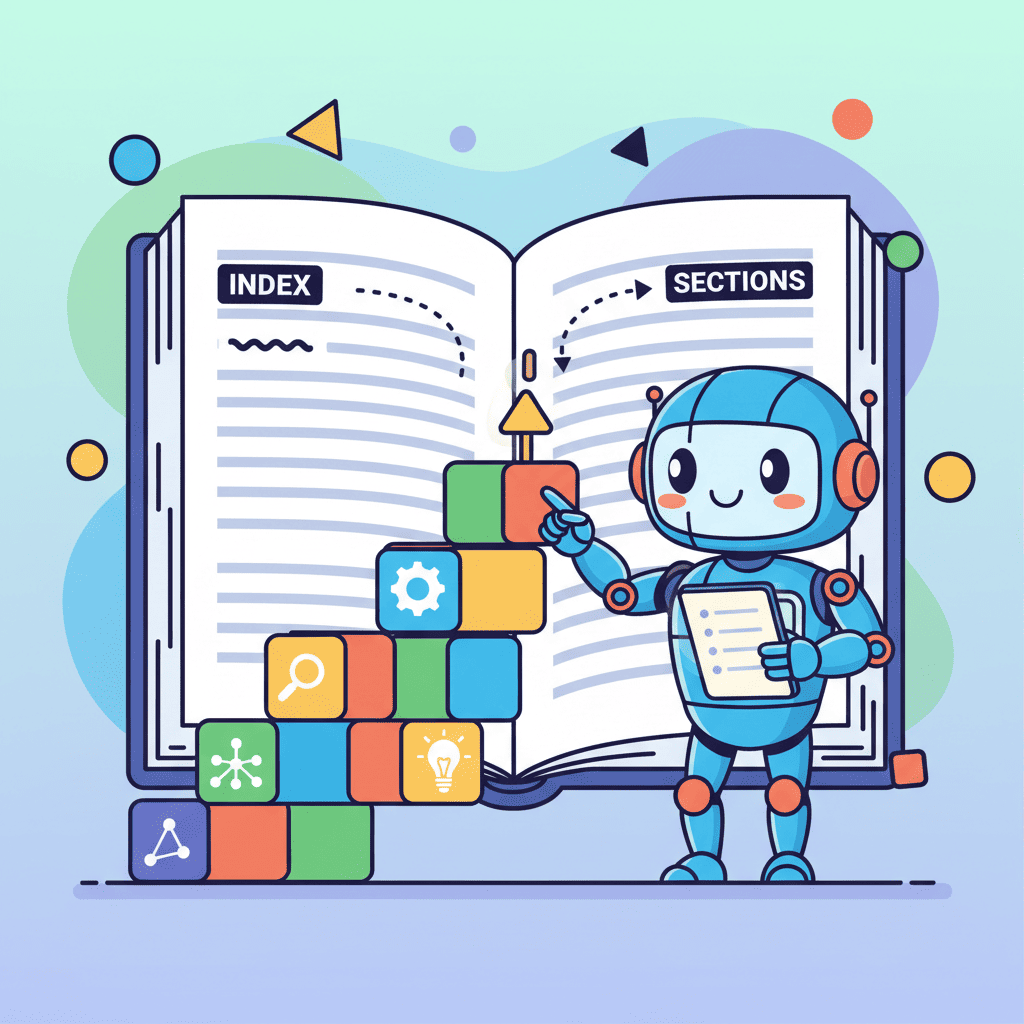
Here's how to get maximum value:
For quick wins: Jump to the section matching your current task. Each category has copy-paste prompts that work immediately.
For learning: Read "The Anatomy of a Good AI Prompt" first. Understanding why these prompts work helps you adapt them for your specific needs.
For building complete pages: Start with the page-level components, then layer in navigation, forms, and data display. Each section references related guides that go deeper.
Pro tip: The prompts in this guide work across all major AI tools—Fardino, v0, Lovable, Cursor, and more. The universal principle is specificity: the more context you provide, the better your output.
The Anatomy of a Good AI Prompt
Before diving into 300+ templates, let's understand what makes an AI prompt actually work.
Most failed prompts share the same problem: they're too vague. "Create a hero section" gives the AI no direction. It'll pick random defaults that probably don't match your vision.
Effective prompts include five key elements:
| Element | What It Covers | Example |
|---|---|---|
| Component Type | What you're building | Hero section, contact form, pricing table |
| Layout | Spatial arrangement | Split-screen, centered, grid layout |
| Visual Style | Colors, typography, mood | Dark mode, gradient background, minimal |
| Content | Text, data, interactions | Headlines, CTAs, placeholder data |
| Technical Specs | Framework, libraries | React, Tailwind, shadcn/ui |
Here's the formula in action:
Bad prompt:
Create a dashboard
Good prompt:
The second prompt eliminates guesswork. The AI knows exactly what to build.
Now let's apply this formula across every major UI component.
Page-Level Components (Hero, Landing, Pricing)
Page-level components are the big pieces: hero sections, feature grids, pricing tables, and full landing pages. These set the tone for everything else.

Hero Sections
The hero section has about 3 seconds to convince someone to stay. Generic prompts produce generic results—and generic results get ignored.
For deep-dive templates and 25+ variations, see our complete AI hero section prompts guide.
SaaS Hero Template:
Startup Launch Hero:
E-commerce Hero:
| Hero Type | Best For | Key Elements |
|---|---|---|
| Split-screen | SaaS, B2B | Product mockup + headline |
| Centered | Startups, launches | Email capture, social proof |
| Full-bleed | E-commerce, portfolios | Visual-first, minimal text |
| Video background | Agencies, premium brands | Atmosphere over information |
Landing Page Sections
Beyond the hero, landing pages need features, social proof, and calls-to-action. Our AI landing page prompts guide covers 50+ templates for every section.
Bento Grid Features:
Testimonial Section:
For dedicated testimonial templates that build real trust, check our AI testimonial section prompts guide. For image-heavy sections — lightboxes, masonry grids, swipeable carousels — see the AI image gallery and carousel prompts guide.
Pricing Tables
Pricing pages are conversion battlegrounds. The right prompt can mean the difference between "I'll think about it" and "take my money."
Three-Tier Pricing:
Comparison Table:
Our AI pricing table prompts guide has 20+ templates that convert—not just display.
Navigation Components (Navbar, Sidebar, Footer)
Navigation makes or breaks usability. Users should find what they need without thinking.
Navbars
Standard SaaS Navbar:
Mega Menu:
For 40+ navigation templates including complex mega menus, see our AI navbar & footer prompts guide.
Sidebars
Sidebars are essential for dashboards and admin panels. Get them wrong and your app feels like a maze. (Building a complete admin panel? The admin panel AI prompts tutorial walks through the whole thing step by step.)
Collapsible Dashboard Sidebar:
Admin Panel Sidebar:
Our AI sidebar & drawer prompts guide covers 30+ patterns for SaaS navigation.
Footers
Footers often get neglected—but they're prime real estate for links, social proof, and conversions.
Standard Footer:
Form Components (Inputs, Validation, Multi-step)
Forms are deceptively hard. They look simple—a few inputs and a button—but edge cases will eat you alive if you're not specific.
Our AI form prompts guide has 35+ templates covering every form type. Here are the essentials:
Contact & Registration Forms
Contact Form with Validation:
Registration Form:
Multi-Step Wizards
Onboarding Wizard:
For complete onboarding flow patterns, see our AI onboarding flow prompts guide.
File Uploads
File uploads break constantly when prompts are too vague. Be explicit about behaviors.
Drag-and-Drop Uploader:
Our AI file upload prompts guide covers drag-drop, multi-file, and image cropping patterns.
Form Comparison
| Form Type | Key Challenge | Must-Have in Prompt |
|---|---|---|
| Contact | Spam prevention | Validation rules, success states |
| Registration | Password complexity | Strength meter, confirmation |
| Multi-step | State persistence | Progress indicator, navigation |
| File upload | Error handling | Size limits, type validation |
| Payment | Security perception | Card formatting, trust badges |
Data Display (Tables, Charts, Cards)
Dashboards live or die on data display. Tables need to sort. Charts need to inform. Cards need to organize.
Data Tables
Tables are notoriously tricky—sorting, filtering, and pagination all need explicit instructions.
Sortable Data Table:
Admin User Table:
Our AI data table prompts tutorial has 15+ templates for complex tables.
Charts & Visualization
Charts require library specificity—Recharts, Chart.js, and D3 produce very different code.
Dashboard Line Chart:
Multi-Chart Dashboard:
For 25+ chart templates and data visualization patterns, check our AI chart prompts guide.
Dashboard Layouts
SaaS Dashboard:
Our AI dashboard prompts guide covers 40+ templates for admin panels and analytics views.
Feedback Components (Modals, Toasts, Alerts)
Feedback components tell users what's happening. Modals grab attention. Toasts confirm actions. Alerts warn of problems.
Modals & Dialogs
Confirmation Modal:
Form Modal:
Our AI modal & popup prompts guide has 30+ templates for every modal type.
Toast Notifications
Toast System:
Alert Components
Inline Alert:
Advanced (Animations, Dark Mode, Accessibility)
Advanced components separate professional UIs from amateur ones. These patterns add polish that users feel even when they can't articulate it.
Animations & Micro-interactions
Animations done wrong are janky. Done right, they feel magical. (Card-specific patterns — layouts, hover states, image cards — get the full treatment in the AI card component prompts guide.)
Hover Effects:
Loading States:
Page Transitions:
For comprehensive animation patterns, see our AI animation & micro-interactions tutorial.
Dark Mode
Dark mode isn't optional anymore—but implementing it wrong creates accessibility nightmares.
Theme Switcher:
Dark Mode Color System:
Our AI dark mode prompts guide covers complete theme systems that don't break.
Accessibility
96% of AI-generated UIs fail basic accessibility audits. These prompts fix that.
Accessible Form:
Keyboard Navigation:
For complete tab and accordion patterns — lazy loading, URL-synced tabs, animated panels — see the AI tabs and accordion prompts guide.
Screen Reader Optimization:
The Prompt Formula Cheat Sheet
Here's a quick reference for writing prompts that work:
Essential Elements
Template by Component Type
Hero Section:
Form:
Data Table:
Modal:
Quick Quality Checklist
Before submitting any prompt:
- Specified component type and context
- Included layout details (not just "nice layout")
- Mentioned colors or design system
- Described all states (loading, success, error)
- Listed technical requirements (framework, libraries)
- Added mobile/responsive requirements
- Included accessibility if relevant
Frequently Asked Questions
What's the ideal length for an AI UI prompt?
3-7 sentences covering the five key elements: component, layout, visual, content, and technical specs. More detail helps, but don't write novels. If you're over 200 words, you're probably overcomplicating it.
Which AI tool works best with these prompts?
These prompts are tool-agnostic—they work with Build with Fardino →, v0, Lovable, Cursor, and most AI code generators. The principle (specificity) is universal. Some tools may interpret certain keywords differently, but the core approach applies everywhere.
How do I get consistent results across generations?
Include your design system constraints in every prompt: "Use Tailwind CSS, shadcn/ui components, Inter font, rounded-lg borders." Consistency comes from constraints. Without them, each generation is a fresh roll of the dice.
Can I combine prompts from different sections?
Absolutely. "Take the sidebar from the navigation section and pair it with the data table from the data display section" works well. Think of these as LEGO blocks—they're designed to work together.
Why does my output still look generic sometimes?
You're probably missing specific visual details. Add one unexpected element: a specific animation, unusual typography weight, distinctive color combination, or named design inspiration ("inspired by Linear's aesthetic"). Generic prompts produce generic outputs.
How do I handle complex multi-component pages?
Break them into sections. Generate each section separately, then assemble. Trying to generate an entire complex page in one prompt often produces lower quality than building incrementally.
What if the output is close but not perfect?
Iterate. Add the specific fix to your prompt: "Same as before but make the buttons rounded-full instead of rounded-lg." Small refinements compound into exactly what you need.
How often should I update my prompt library?
Whenever you find a prompt that works well for your specific use case, save it. The templates here are starting points—your personalized versions with your brand colors, your preferred component library, and your common patterns will be even more valuable.
Common Mistakes to Avoid
After reviewing thousands of AI-generated UIs, these are the patterns that consistently produce poor results:
Mistake 1: The Vague Aesthetic
Don't do this:
Create a modern, clean dashboard
"Modern" and "clean" are meaningless to an AI. Every designer interprets these differently. The AI will pick random defaults that probably don't match your mental image.
Do this instead:
Mistake 2: Missing States
Forms without error states. Buttons without loading indicators. Cards without hover effects. If you don't specify states, you won't get them.
Always include:
- Loading states for any async action
- Error states for validation
- Empty states for lists and tables
- Hover/focus states for interactive elements
- Success confirmation for form submissions
Mistake 3: Ignoring Mobile
"Make it responsive" is better than nothing, but it's still vague. Specify what happens at each breakpoint.
Be explicit:
Mistake 4: Forgetting Accessibility
Most AI outputs skip accessibility entirely. If you need accessible components (and you do), explicitly request:
- Proper heading hierarchy
- ARIA labels and roles
- Keyboard navigation
- Focus management
- Color contrast requirements
- Screen reader considerations
Mistake 5: Generic Content
Placeholder text like "Lorem ipsum" produces generic-looking output. Use realistic content:
Prompt Iteration Workflow
Getting perfect results on the first try is rare. Here's a workflow for refining prompts efficiently:
Step 1: Start Broad
Your first prompt should cover the essentials: component type, basic layout, and technical stack. Don't over-engineer the first attempt.
Step 2: Evaluate Structurally
Is the layout right? Are the major sections where you expect them? If structure is wrong, fix that before worrying about colors.
Step 3: Refine Visually
Once structure is correct, add visual refinements: colors, typography, spacing, shadows. These are easier to adjust than fundamental layout changes.
Step 4: Add Polish
Final pass: animations, hover states, micro-interactions. These are the details that separate good from great.
Step 5: Document What Works
When you nail a prompt, save it. Build your own library of templates customized for your tech stack and design system.
Building Your Prompt Library
The templates in this guide are starting points. Your personalized library will be even more valuable.
What to Save
- Prompts that worked first try
- Your brand colors and design system constraints
- Common component patterns for your app
- Technical requirements (libraries, frameworks)
- Accessibility requirements
Template Structure
Create a template for each component type you use regularly:
Sharing and Collaboration
If you're on a team, maintain a shared prompt library. Consistency across team members means consistent UI output. Your junior developers can generate the same quality components as your seniors.
Related Guides
This pillar page gives you the overview. These guides go deep on specific component types:
Page Components
- AI Landing Page Prompts: 50+ Templates — Complete page templates from hero to footer
- AI Hero Section Prompts: 25+ Templates — Stop-the-scroll hero sections
- AI Pricing Table Prompts — Tables that actually convert
- AI Testimonial Section Prompts — Build trust with social proof
Navigation
- AI Navbar & Footer Prompts: 40+ Templates — Professional navigation patterns
- AI Sidebar & Drawer Prompts: 30+ Templates — SaaS and admin navigation
Forms & Input
- AI Form Prompts: 35+ Templates — Contact forms to multi-step wizards
- AI File Upload Prompts — Drag-drop, progress, validation
- AI Onboarding Flow Prompts — User journeys that convert
Data & Dashboards
- AI Dashboard Prompts: 40+ Templates — Admin panels and analytics
- AI Data Table Prompts: 15+ Templates — Sortable, filterable tables
- AI Chart Prompts: 25+ Templates — Data visualization done right
Feedback & Interaction
- AI Modal & Popup Prompts: 30+ Templates — Dialogs, confirmations, alerts
Advanced
- AI Animation Prompts — Micro-interactions and transitions
- AI Dark Mode Prompts — Theme systems that work
Start Building
You now have the complete playbook for AI UI generation. 300+ templates organized by use case. A formula that works across any tool. Deep-dive guides for every major component.
But prompts are only as good as what you build with them.
Pick a template. Customize it for your project. Generate something real. The best UI component is the one that's live—not the one you're still perfecting.
Ready to try these prompts? Build with Fardino →
Written by the Fardino Team. We build AI tools for frontend developers who ship.
Got an idea? Build it now.
Describe the site or app you want — Fardino turns it into a live website.