AI Modal Prompts: 30+ Templates That Convert
Look, I've been there. You need a simple login modal and you prompt "create a login modal" and get... something that looks like it was designed in 2008 by someone who actively hated users. Modals aren't just floating boxes. They're


Look, I've been there. You need a simple login modal and you prompt "create a login modal" and get... something that looks like it was designed in 2008 by someone who actively hated users.
Modals aren't just floating boxes. They're conversion machines. That cookie consent popup? That's compliance AND trust-building. That newsletter signup? That's your email list growing. That confirmation dialog? That's the difference between a user accidentally deleting their account or not.
Here's the thing about AI modal prompts that nobody tells you: the structure matters more than the description. I spent three weeks testing what works and what doesn't. These are the prompts that actually generate usable modals.
Key Takeaways:
- Specific prompts beat vague ones—include size, animation, and close behavior
- Always specify mobile responsiveness for modals (AI forgets this constantly)
- Exit intent popups need delay parameters or they fire immediately and annoy everyone
In This Article
- The Anatomy of a Good Modal Prompt
- Basic Modal Dialogs
- Form Modals
- Cookie Consent Modals
- Exit Intent Popups
- Toast Notifications
- Drawer Panels
- FAQ
The Anatomy of a Good Modal Prompt
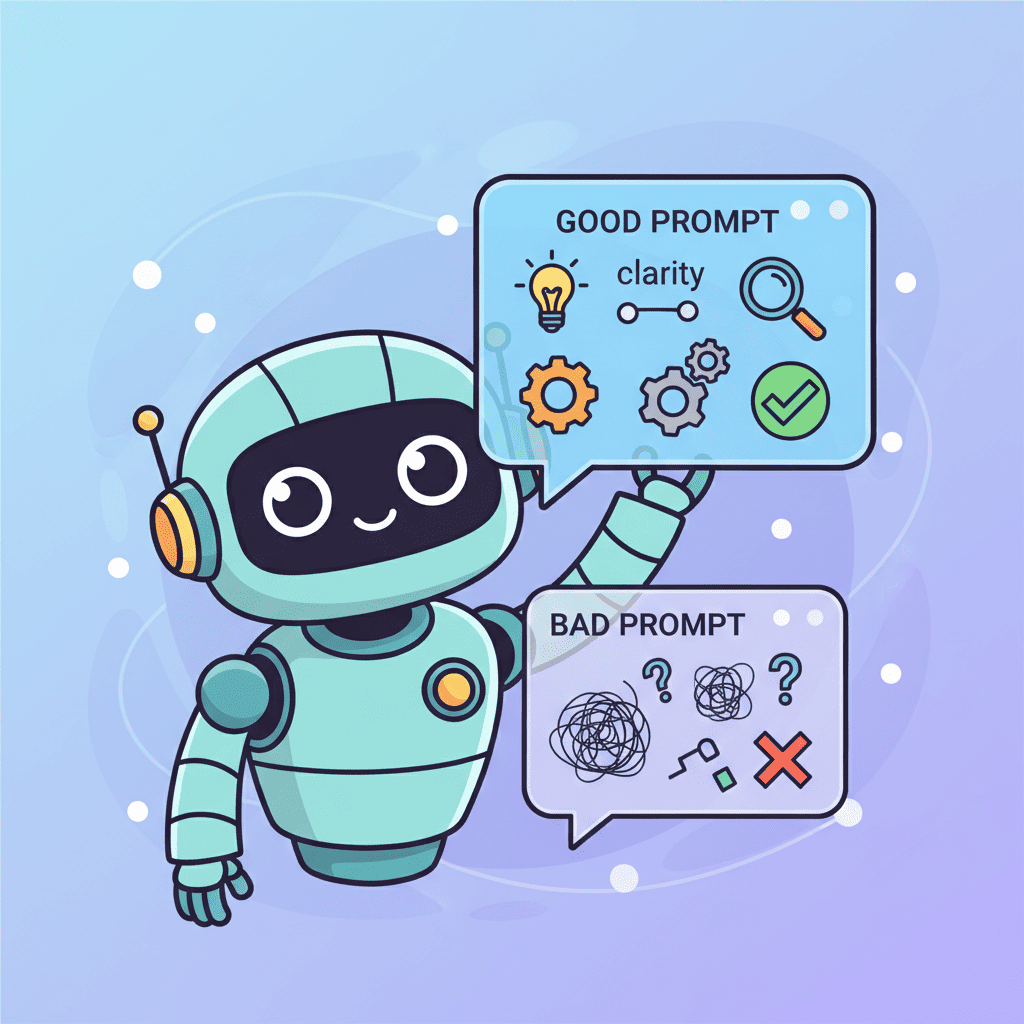
Before we dive into templates, let's talk about why your modal prompts probably suck.

Most people write prompts like this:
- "Create a modal"
- "Make a popup for newsletter signup"
- "Login dialog component"
And then wonder why the AI generates something unusable. Here's what you're missing:
| Element | Why It Matters | Example |
|---|---|---|
| Size | AI defaults to weird dimensions | "medium-sized (max-w-md)" |
| Animation | Without this, modals just appear | "fade in with slight scale up" |
| Close Behavior | Critical for UX | "close on backdrop click and Escape key" |
| Mobile | AI forgets mobile exists | "responsive, full-screen on mobile" |
| Overlay | Controls backdrop darkness | "semi-transparent dark backdrop" |
A solid modal prompt structure looks like this:
This isn't rocket science. But it's the difference between usable components and garbage.
Basic Modal Dialogs: Confirmation, Alert, Info
Let's start with the bread and butter. These are the modals you'll use everywhere.
Confirmation Modal
Want to try this yourself?
Alert/Info Modal
Pro tip: Always include that scrollable content area. Users WILL paste essays into these things.
Form Modals: Login, Signup, Newsletter
This is where most AI prompts fail spectacularly. Forms inside modals need extra attention because there's so much that can go wrong.
Login Modal
That loading state? Crucial. That validation styling? Non-negotiable. These are the details that separate professional UIs from amateur hour. For more form patterns, check out our AI form prompts guide.
Newsletter Signup Popup
The localStorage check is something most prompts miss. Nobody wants to see the same popup every page load.
Cookie Consent & GDPR Modals
Let's be honest—these are annoying but legally required. At least make them not ugly.
Exit Intent Popup Prompts
These are the "wait, don't go!" modals. Used well, they recover abandoned carts. Used poorly, they make people hate your site.
That "only show once per session" bit? That's what separates you from those sketchy sites with popups every 10 seconds.
Toast Notifications & Snackbar Prompts
Toasts are the unsung heroes of UX. They confirm actions without disrupting flow.
The queue system is key. Without it, rapid-fire toasts become chaos.
Drawer & Slideout Panel Prompts
Drawers are modals' cooler cousin. Great for forms, filters, and navigation.
That body scroll lock is critical. Without it, users scroll the page behind the drawer and get confused. It's a small detail that makes a huge difference. For more complex UIs like admin panels, our dashboard prompts guide covers navigation patterns that work with drawers.
Image Gallery Lightbox
Common Modal Mistakes to Avoid
After testing dozens of AI modal prompts, here's what kills most implementations:
- No mobile consideration - Desktop modals don't work on phones. Always specify mobile behavior.
- Missing escape routes - Users panic when they can't close something. Multiple close methods = happy users.
- Ignoring accessibility - Focus traps and keyboard navigation aren't optional.
- Animation overkill - 200-300ms is enough. More feels sluggish.
- No loading states - Forms without loading feedback feel broken.
If you're new to vibe coding, our beginner's tutorial covers these fundamentals before jumping into components.
Quick Reference: Modal Prompt Cheat Sheet
| Modal Type | Key Elements to Include | Common Mistake |
|---|---|---|
| Confirmation | Two buttons, warning icon | Missing cancel option |
| Login | OAuth buttons, loading state | No password toggle |
| Cookie | Manage preferences option | No localStorage save |
| Exit Intent | Session limit, delay trigger | Showing on mobile |
| Toast | Auto-dismiss, queue system | No progress indicator |
| Drawer | Scroll lock, escape close | Fixed footer ignored |
Frequently Asked Questions
What makes a good AI modal prompt?
A good AI modal prompt includes six things: size (use Tailwind classes), animation (entrance/exit), close behavior (backdrop, escape, button), content structure, mobile handling, and any state management needs. Vague prompts like "make a modal" generate unusable components.
How do I make modals accessible with AI?
Include these in your prompt: focus trap inside modal, keyboard navigation (Escape to close, Tab cycling), ARIA labels, and proper button roles. AI tools handle accessibility better when you explicitly ask for it.
Why do my AI-generated modals look bad on mobile?
Because you didn't specify mobile behavior. Add "full screen on mobile" or "bottom sheet on mobile" to your prompt. Without this, AI assumes desktop-only and you get tiny, unclickable modals on phones.
Should I use exit-intent popups?
Yes, but responsibly. Set them to show once per session, add a delay (3+ seconds after page load), and skip mobile entirely. Exit intent detection doesn't work on touch devices and will just annoy users.
You Might Also Like
- AI Landing Page Prompts: 50+ Templates - Complete prompts for hero sections, features, CTAs, and more
- AI Form Prompts: 35+ Templates - Login forms, contact forms, multi-step wizards that actually work
- Vibe Coding Best Practices - Get better results from every AI prompt you write
Written by the Fardino Team. We build AI tools for frontend developers. Build with Fardino →
<!-- SCHEMA_DATA { "article": { "@type": "Article", "headline": "AI Modal Prompts: 30+ Templates That Convert", "description": "I tested 40+ modal prompts. Most generated garbage. Here are the 30+ AI modal prompts that actually work for popups, dialogs, and overlays.", "author": { "@type": "Organization", "name": "Fardino", "url": "https://fardino.com" }, "datePublished": "2025-12-16", "dateModified": "2025-12-16" }, "faq": [ { "question": "What makes a good AI modal prompt?", "answer": "A good AI modal prompt includes six things: size (use Tailwind classes), animation (entrance/exit), close behavior (backdrop, escape, button), content structure, mobile handling, and any state management needs." }, { "question": "How do I make modals accessible with AI?", "answer": "Include focus trap inside modal, keyboard navigation (Escape to close, Tab cycling), ARIA labels, and proper button roles in your prompt." }, { "question": "Why do my AI-generated modals look bad on mobile?", "answer": "Because you didn't specify mobile behavior. Add 'full screen on mobile' or 'bottom sheet on mobile' to your prompt." }, { "question": "Should I use exit-intent popups?", "answer": "Yes, but responsibly. Set them to show once per session, add a delay (3+ seconds), and skip mobile entirely since exit intent detection doesn't work on touch devices." } ], "howto": { "name": "How to Write Effective AI Modal Prompts", "steps": [ {"name": "Specify modal size", "text": "Use Tailwind classes like max-w-sm or max-w-md instead of vague terms"}, {"name": "Define animations", "text": "Include entrance and exit animations with timing (200-300ms)"}, {"name": "Set close behavior", "text": "Specify backdrop click, escape key, and button close options"}, {"name": "Handle mobile", "text": "Add mobile-specific behavior like full-screen or bottom sheet"}, {"name": "Include states", "text": "Add loading states, validation feedback, and localStorage checks"} ] }, "breadcrumb": ["Home", "Blog", "Guides", "AI Modal Prompts: 30+ Templates That Convert"] } SCHEMA_DATA -->Got an idea? Build it now.
Describe the site or app you want — Fardino turns it into a live website.




