MCP for Frontend Developers: Connect Your AI Tools to Everything
You've probably noticed your AI coding tools getting smarter lately. Cursor understands your codebase better. Claude can pull data from APIs. Windsurf connects to your design files. What's happening behind the scenes? Three letters: MCP . Model Context Protocol is

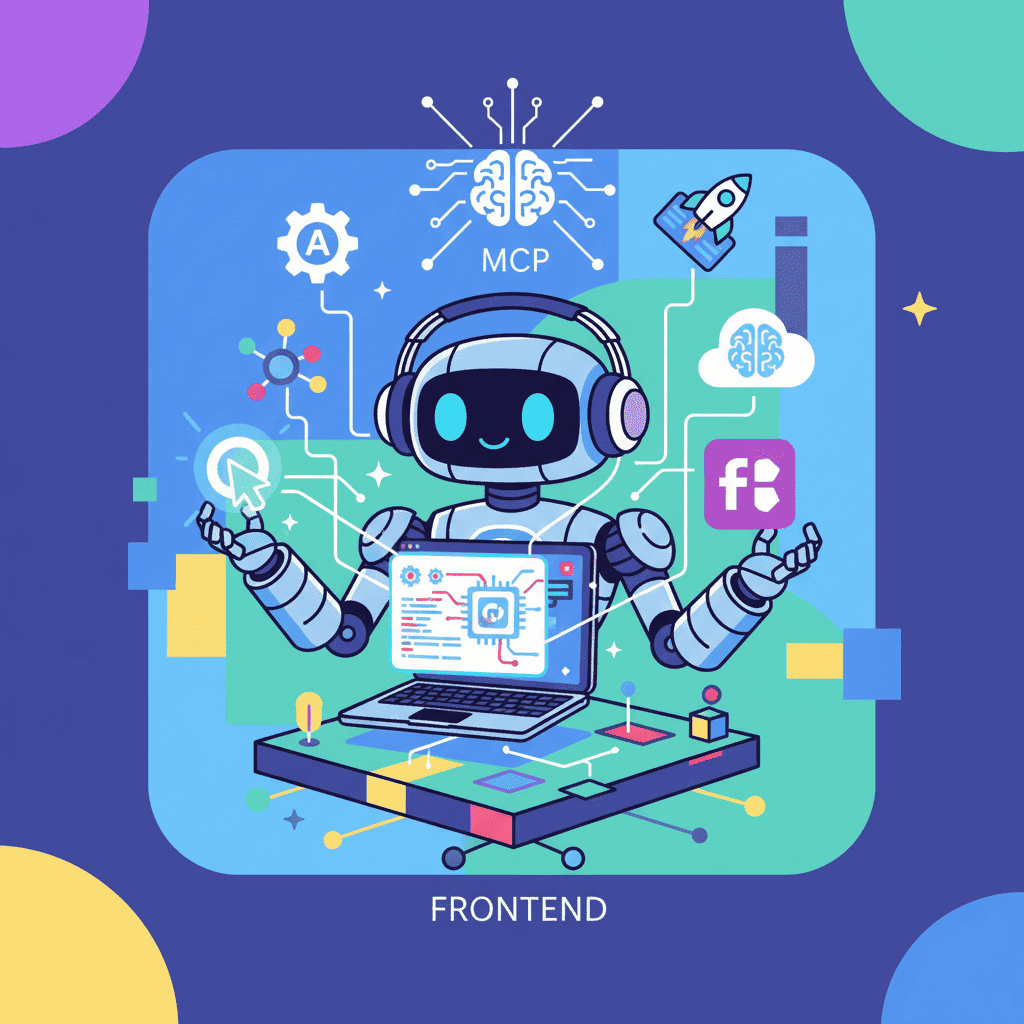
You've probably noticed your AI coding tools getting smarter lately. Cursor understands your codebase better. Claude can pull data from APIs. Windsurf connects to your design files.
What's happening behind the scenes? Three letters: MCP.
Model Context Protocol is quietly becoming the USB-C of AI development—a universal connector that lets your AI tools talk to basically anything. And honestly? Most frontend developers are sleeping on this.
What is Model Context Protocol (MCP), Really?
Here's the deal: AI coding assistants are great at generating code, but they've traditionally been stuck in a bubble. They can only see what you paste into them or what's in your current file. That's a problem.
Model Context Protocol, introduced by Anthropic in November 2024, solves this by creating a standardized way for AI tools to connect with external data sources, APIs, and services. Think of it as a plugin system for AI—but one that actually works across different tools.
The adoption has been wild. OpenAI jumped on board. Google DeepMind followed. Cursor, Windsurf, Sourcegraph, Replit—they're all in. The community has built over 1,000 MCP servers as of early 2025.
Why should you care? Because MCP means your AI assistant can:
- Pull your actual Figma designs while generating code
- Access your GitHub issues and PRs for context
- Query your database schema to generate accurate data fetching
- Read your documentation without you copy-pasting everything
This isn't theoretical. This is working today.
How MCP Works: The 60-Second Explainer
I'm going to keep this simple because the technical docs make it sound way more complicated than it is.
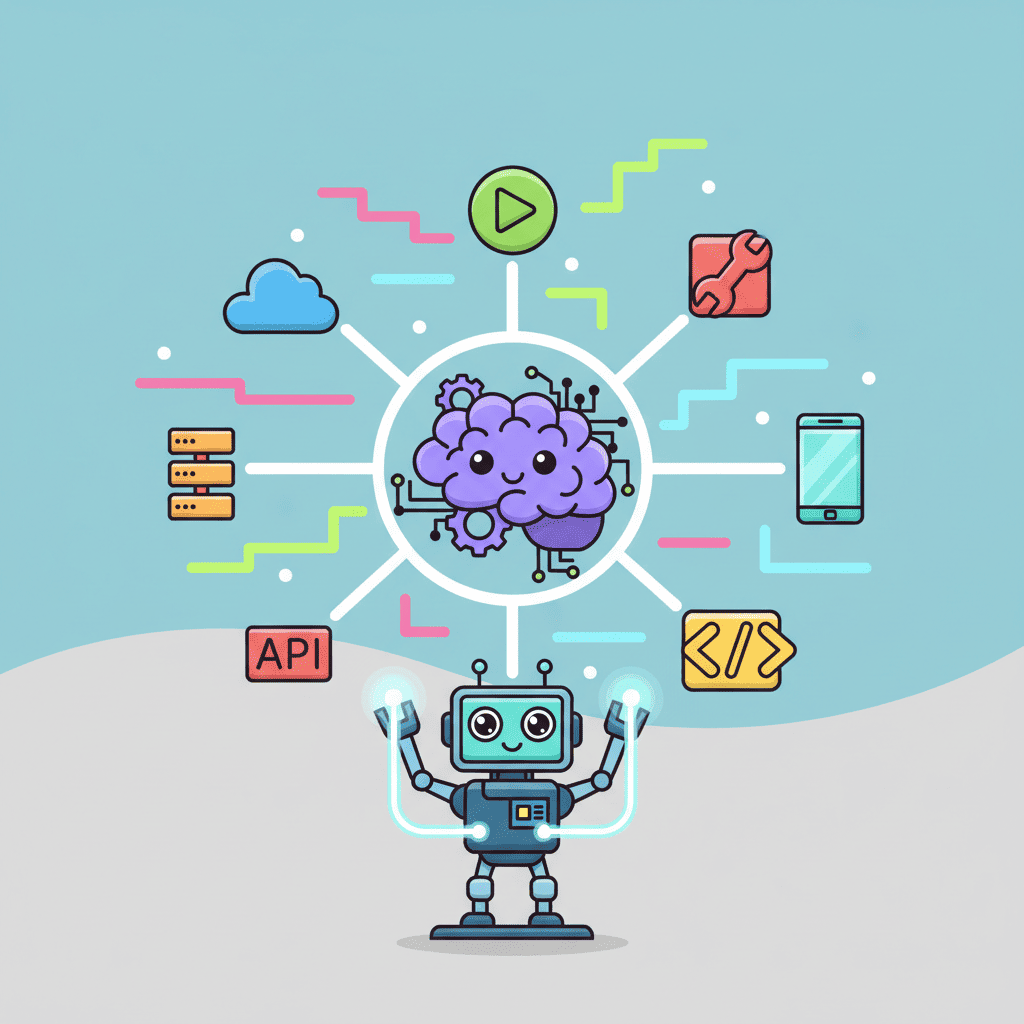
MCP has three parts:
- Host: Your AI tool (Cursor, Claude Desktop, etc.)
- Protocol: The standardized communication layer
- Server: A connector to a specific service (Figma, GitHub, Supabase)
When you ask Cursor to "create a component based on my Figma design," here's what happens:
- Cursor recognizes you're referencing Figma
- It calls the Figma MCP server through the protocol
- The server fetches your design data
- Cursor gets real design specs—colors, spacing, components—not guesses
That's it. The AI stops hallucinating your design system and starts using the actual one.
If you've been working on context engineering, MCP is basically automated context engineering. Instead of manually crafting prompts with all the right information, MCP pulls it automatically.
Setting Up MCP with Cursor for Frontend Development
Let's get practical. Here's how to set up MCP with Cursor—currently the most popular AI IDE for frontend work.
Step 1: Check Your Cursor Version
MCP support landed in Cursor 0.43+. Run Help > About to verify. If you're behind, update first.
Step 2: Configure Your MCP Servers
Open Cursor's settings and find the MCP configuration. You'll need to add servers to your ~/.cursor/mcp.json file:
Step 3: Test the Connection
Open a new chat in Cursor and try: "What files are in my current GitHub repo?" If it responds with actual file data, you're connected.
Pro tip: Start with one server. Get it working. Then add more. I've seen devs try to configure five servers at once and spend hours debugging when one simple typo breaks everything.
Compared to older methods of converting Figma designs to code, MCP provides real-time, bidirectional communication—not just one-time exports.
Top 5 MCP Servers for Frontend Development
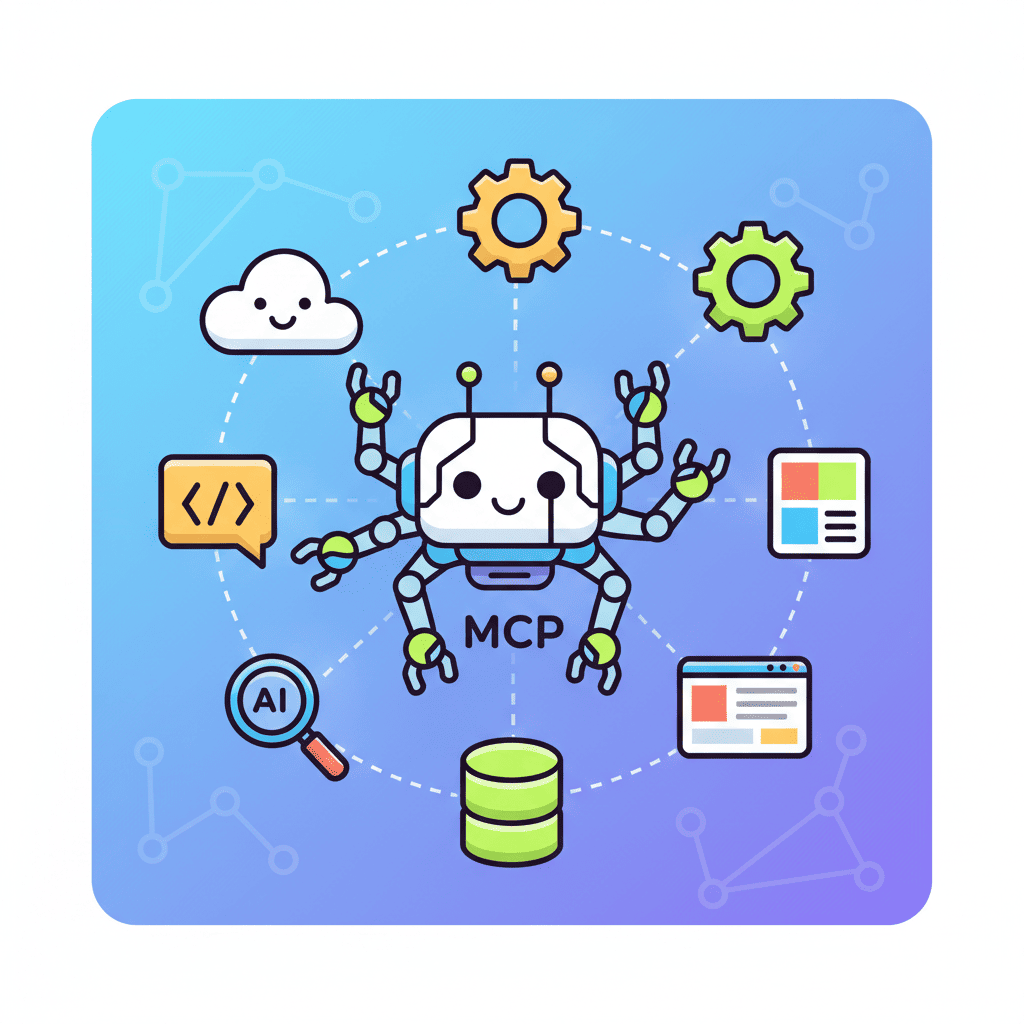
Not all MCP servers are created equal. Here are the ones actually worth your time for UI work:
| Server | Best For | Setup Difficulty |
|---|---|---|
| Figma MCP | Design-to-code, token sync | Medium |
| GitHub MCP | Codebase context, PR reviews | Easy |
| Supabase MCP | Database schema access | Easy |
| Linear MCP | Issue context in prompts | Easy |
| Filesystem MCP | Local file access | Trivial |
1. Figma MCP Server
This is the game-changer for frontend devs. The Figma MCP server lets your AI assistant:
- Read actual component properties
- Extract design tokens (colors, spacing, typography)
- Understand component hierarchy
- Access auto-layout settings
No more eyeballing hex codes or guessing padding values. The AI sees exactly what your designer created.
2. GitHub MCP Server
Context is everything. The GitHub server gives your AI visibility into:
- Open issues and their discussions
- Pull request comments and reviews
- Repository structure and README content
- Recent commits and their messages
When you ask "help me fix issue #47," it actually reads issue #47.
3. Supabase MCP Server
If you're using Supabase (and let's be honest, half the vibe coding community is), this server exposes your database schema to your AI. It can generate data fetching code that matches your actual tables and columns—not some generic placeholder nonsense.
4. Linear MCP Server
For teams using Linear for project management, this surfaces ticket context. Your AI can reference specific tasks, understand acceptance criteria, and even suggest code that addresses documented edge cases.
5. Filesystem MCP Server
Sometimes you just need your AI to read local files it can't normally access. This server enables that. Simple but powerful for monorepo setups or when you need context from config files outside your current workspace.
Practical Example: Figma to React with MCP
Let's walk through a real workflow. Say you have a card component in Figma and want to generate React code.
Old way (painful):
- Screenshot the design
- Manually note the colors: "looks like #3B82F6 maybe?"
- Eyeball the padding: "probably 16px?"
- Write a prompt describing it all
- Fix the inevitable mismatches
MCP way:
- Connect Figma MCP server
- Ask: "Generate a React card component matching the ProductCard frame in my Figma file"
- Get code with actual design tokens
The prompt becomes simple because the context is automatic.
Want to try this yourself?
Even without MCP, tools like Fardino generate production-ready components. MCP just means fewer iterations to match your exact design system.
Security Considerations for MCP
Here's the part nobody wants to talk about: MCP introduces real security considerations.
When you connect an MCP server, you're giving an AI system access to external data. That's powerful—and potentially risky.
| Risk | Mitigation |
|---|---|
| Token exposure | Use environment variables, never commit tokens |
| Data leakage | Review what data servers can access |
| Prompt injection | Use trusted, audited MCP servers |
| Overwide permissions | Grant minimal necessary scopes |
My take: Only install MCP servers you actually need. The "install everything just in case" approach is how you end up with an AI that can read your production database. Not ideal.
Check out our vibe coding security checklist for a broader look at keeping AI-generated code secure.
Some specific recommendations:
- Audit server code: Most MCP servers are open source. Actually look at what they do before running them.
- Use read-only tokens: For Figma and GitHub, you can create tokens with limited scopes. Do it.
- Network isolation: If you're paranoid (you should be), run MCP servers in containerized environments.
- Regular token rotation: Treat MCP tokens like any other secret. Rotate them quarterly at minimum.
The Future: MCP is Becoming the Standard
Let me make a prediction: within 18 months, every serious AI coding tool will support MCP. It's becoming the de facto standard for tool connectivity.
Why? Because the alternative sucks. Without a standard protocol, every AI tool needs custom integrations with every service. That doesn't scale.
With MCP:
- One Figma server works with Cursor, Claude, Windsurf, and anything else that adopts the protocol
- Server developers build once, reach every platform
- Users get consistent experiences across tools
The major players get this. That's why OpenAI and Google jumped on board so quickly. That's why the Cursor vs Windsurf conversation increasingly includes "which MCP servers does it support?"
For frontend developers specifically, MCP means:
- Design-to-code workflows that actually preserve fidelity
- Component generation that understands your design system
- Automated context that follows vibe coding best practices
- Less prompt engineering, more building
Getting Started Today
Here's your action plan:
- Update your AI IDE to the latest version with MCP support
- Start with Figma MCP if you work with designers (you probably do)
- Add GitHub MCP for codebase context
- Test with small tasks before relying on it for big features
- Review security settings before connecting production data
MCP isn't just another acronym to ignore. It's the infrastructure layer that makes AI coding tools genuinely useful—not just impressive demos that fall apart on real projects.
The frontend developers who figure this out now will ship faster than everyone still copy-pasting context into prompts. That's not hype. That's just how these tools work.
Now go connect something.
Got an idea? Build it now.
Describe the site or app you want — Fardino turns it into a live website.