Vibe Debugging: 5-Step Workflow That Fixes Any AI UI
So your AI just generated a beautiful button that does absolutely nothing when you click it. Or maybe a form that submits to nowhere. Perhaps a responsive layout that looks great on desktop and like a crime scene on mobile.

So your AI just generated a beautiful button that does absolutely nothing when you click it. Or maybe a form that submits to nowhere. Perhaps a responsive layout that looks great on desktop and like a crime scene on mobile.
Welcome to vibe debugging—the skill nobody taught you but everyone desperately needs.
Key Takeaways:
- Vibe debugging is about asking AI to explain before asking it to fix—this alone solves 60% of issues faster
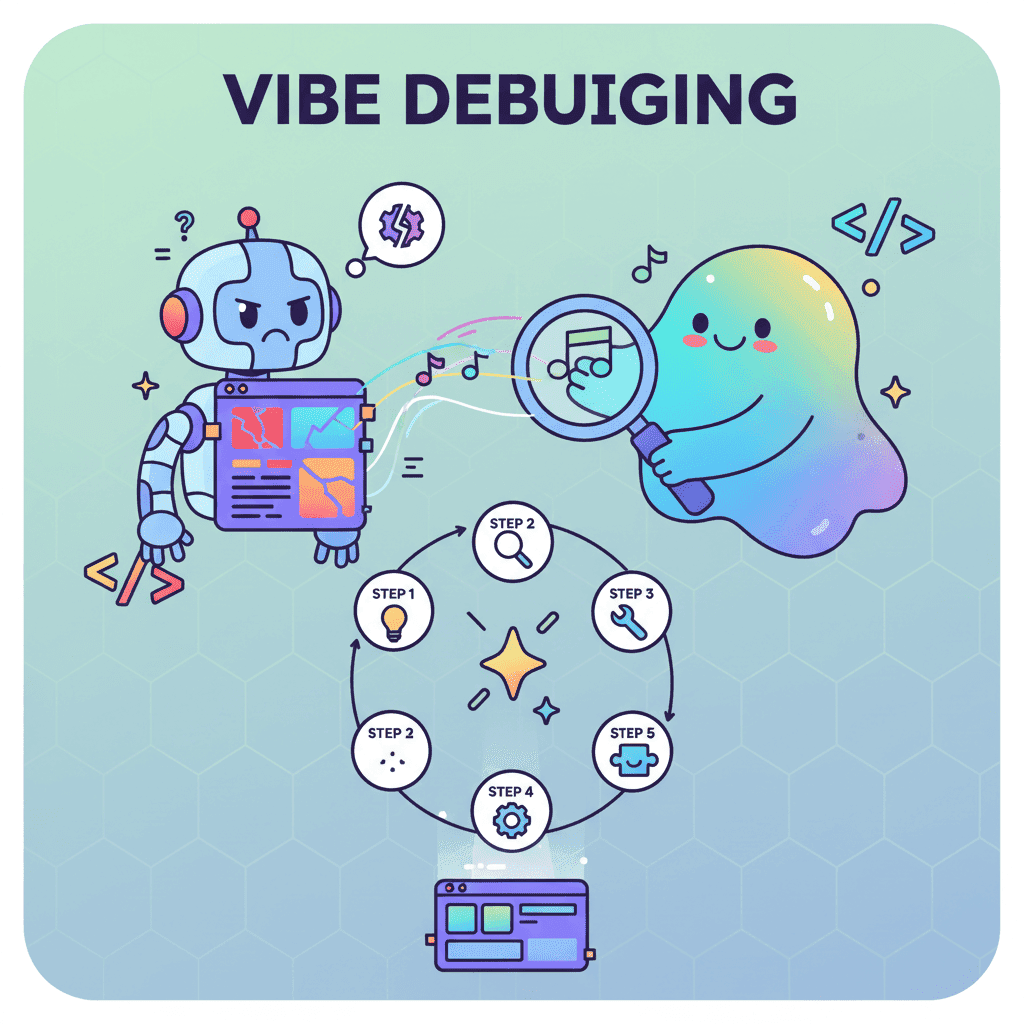
- The 5-step workflow: Identify symptom → Isolate component → Ask for explanation → Prompt for fix → Document
- Knowing when to regenerate vs debug saves hours of frustration (hint: 3 failed fix attempts = regenerate)
In This Article
- What is Vibe Debugging?
- The 5-Step Vibe Debugging Workflow
- 10 Debugging Prompts That Actually Work
- When to Regenerate vs When to Debug
- Real Example: Debugging a Broken Form
- FAQ
What is Vibe Debugging?
Here's the dirty secret of vibe coding: generating code is the easy part. The hard part? Figuring out why your AI-generated component breaks the moment you try to use it.

Vibe debugging is the practice of using AI to troubleshoot and fix issues in AI-generated code. Instead of staring at cryptic error messages or rage-quitting to rewrite everything manually, you leverage the same AI tools that created the problem to investigate and solve it.
Think of it this way: traditional debugging is like being a detective who has to investigate everything alone. Vibe debugging? You've got a partner who can instantly analyze thousands of lines of code, but they're a bit... forgetful. They don't remember what they wrote or why. Your job is to ask the right questions.
The irony isn't lost on me. We're using AI to fix what AI broke. But honestly? It works shockingly well once you learn the workflow.
The 5-Step Vibe Debugging Workflow
I'm going to be real with you—most developers skip straight to "just fix it" prompts and wonder why they're still stuck three hours later. The workflow I'm about to share took me from "this is broken and I have no idea why" to "fixed in under 10 minutes" for most issues.
Let's break it down.
Step 1: Identify the Symptom, Not the Assumption
This is where 90% of debugging sessions go wrong. You see a broken form and immediately think "the validation is broken." But is it? Maybe the form works fine—the submit handler is what's failing.
Stop assuming. Start describing.
Instead of saying "the form validation doesn't work," describe exactly what happens:
- "When I click Submit with empty fields, no error messages appear"
- "The submit button is clickable but nothing happens when I click it"
- "Error messages show briefly then disappear"
Here's a prompt that actually helps:
The key? Observable facts, not interpretations.
Step 2: Isolate the Broken Component
Here's a hill I'll die on: never debug AI code in context. If you've got a 500-line component with a broken button buried somewhere in the middle, you're going to waste hours.
Extract. Isolate. Test.
Copy the suspected broken section into a minimal test environment. If you're using Build with Fardino → or similar tools, generate a fresh, minimal version of just that component.
Why does this work? Because now you can answer the critical question: is the problem in this component, or in how it interacts with everything else?
If your isolated component works perfectly, the bug is in the integration. If it's still broken, you've narrowed down exactly where to look.
This connects directly to what we covered in fixing common AI code errors—isolation is always the first step.
Step 3: Ask AI to Explain, Not Fix
This is the step that changed everything for me.
When something breaks, our instinct is to immediately ask for a fix. "Fix this." "Make it work." "Why doesn't this work, and also fix it."
Resist that urge.
Instead, ask the AI to explain what the code is supposed to do. This accomplishes two things:
- It reveals mismatches between what you intended and what was generated
- It forces the AI to "think through" the logic before attempting repairs
Here's the prompt structure that works:
I can't tell you how many times the AI's explanation revealed the bug immediately. "When Submit is clicked, the handleSubmit function is called, but it's async and there's no await for the validation check, so it returns before validation completes."
Now you know exactly what to fix.
Step 4: Prompt for Targeted Fixes
Only NOW do you ask for a fix. But not "fix this"—that's how you get spaghetti code on top of your existing spaghetti.
Use surgical prompts that address the specific issue:
The magic words are "fix ONLY this issue" and "show me the corrected [specific thing] only."
This prevents the AI from "helpfully" refactoring your entire component while fixing one line.
Step 5: Document and Prevent Future Issues
Here's what separates pros from amateurs: documentation.
Not a 10-page wiki. A single comment that future-you will thank present-you for.
Even better—ask AI to generate a "what went wrong" summary you can keep:
This is also where learning from your vibe coding mistakes becomes a feedback loop. Every documented bug is a lesson you don't have to relearn.
10 Debugging Prompts That Actually Work
Alright, let's get practical. Here are the prompts I use almost daily:

For Understanding What's Broken
1. The Trace Prompt
Trace the execution of this function step-by-step. What happens at each line when [specific trigger]?
2. The Comparison Prompt
Compare what this component does vs what a working [component type] should do. What's missing or wrong?
3. The Why Prompt
Why might [exact symptom] occur in this code? List 5 possible causes ranked by likelihood.
For Getting Targeted Fixes
4. The Surgical Fix
Fix ONLY [specific function/line]. Don't modify anything else. Explain what you changed and why.
5. The Console Debug Prompt
6. The Defensive Code Prompt
This code breaks when [edge case]. Add defensive checks to handle this case gracefully.
For Prevention
7. The Error Boundaries Prompt
Wrap this component with proper error handling. If any part fails, show a user-friendly error message instead of crashing.
8. The Validation Prompt
Add input validation to this form that catches issues BEFORE submission. Show inline errors for each field.
9. The Edge Case Prompt
What edge cases could break this component? List them and show me how to handle each one.
10. The "Make It Robust" Prompt
This works in the happy path but breaks in [specific scenario]. Make it robust without changing the core functionality.
These prompts follow the prompt iteration workflow we've covered before—each one builds on the last.
When to Regenerate vs When to Debug
This is the question that haunts every vibe coder. Your component is broken. Do you spend 30 minutes debugging or 2 minutes regenerating?
Here's my decision framework:
| Situation | Action | Why |
|---|---|---|
| Broken after 1-2 simple fixes | Keep debugging | You're close |
| Same bug keeps returning | Regenerate | Structural issue |
| Bug is in AI's code architecture | Regenerate | Foundation is wrong |
| Bug is in specific logic/function | Debug | Targeted fix is faster |
| 3+ failed fix attempts | Regenerate | Diminishing returns |
| You can't explain what's wrong | Debug (Step 3) | Need understanding first |
My rule of thumb: if three targeted fix attempts don't solve it, regenerate with a better prompt.
The key is learning from the failure. Don't just regenerate with the same prompt. Use what you learned in debugging to write a better prompt:
See how those "CRITICAL" points came from debugging? That's the feedback loop.
Real Example: Debugging a Broken Form Component
Let me walk you through a real debugging session.
The Problem: A user registration form generated by AI. Click Submit, loading spinner appears for 2 seconds, then... nothing. No error, no success, no redirect.
Step 1: Identify Symptom
"Submit button shows loading state for 2 seconds, then returns to default state. No error messages display. No network request visible in DevTools. No console errors."
Step 2: Isolate I extracted just the form and submit handler into a minimal component. Same behavior.
Step 3: Ask to Explain Prompt: "Walk through what happens line-by-line when Submit is clicked."
AI Response: "The handleSubmit function is called, which sets isLoading to true. Then it calls validateForm() which returns a Promise. But the Promise isn't awaited, so the code continues immediately to the try/catch block where submitForm() is called. Since validation returned a promise that eventually resolves to false, but we didn't wait for it..."
There it is. Missing await.
Step 4: Targeted Fix
Result: One line changed. Added await before validateForm(). Form works.
Step 5: Document
Total time: 7 minutes. And I actually understood what went wrong.
This is exactly the kind of workflow you should apply when working through your vibe coding best practices.
You Might Also Like
- Fix AI-Generated Code Errors (Actually Works) - Quick fixes for the most common AI code issues
- 5 Steps to Fix Any AI UI - The iteration workflow that pairs perfectly with debugging
- 10 Vibe Coding Mistakes That Kill Your Projects - Prevention is better than debugging
Frequently Asked Questions
What is vibe debugging?
Vibe debugging is using AI to troubleshoot and fix issues in AI-generated code. Instead of manually reading through every line, you leverage AI's ability to analyze code and explain what's happening—then use targeted prompts to fix specific issues.
How is vibe debugging different from regular debugging?
Traditional debugging requires you to manually trace code execution and understand every line. Vibe debugging uses AI as a partner to explain code behavior, identify likely causes, and suggest targeted fixes. You're still doing the thinking—but AI does the heavy lifting of code analysis.
When should I regenerate instead of debug?
Regenerate when: you've tried 3+ targeted fixes that failed, the bug is in the fundamental architecture, or the same issue keeps returning after fixes. Debug when: the issue is in specific logic, you've made progress with 1-2 fixes, or you need to understand what went wrong for future prevention.
What's the biggest vibe debugging mistake?
Jumping straight to "fix this" prompts without understanding what's wrong. The AI will often make changes that seem helpful but create new bugs. Always ask the AI to explain the code behavior first—then request targeted fixes.
Can vibe debugging work with any AI tool?
Yes. The workflow works with any AI coding assistant—Claude, ChatGPT, Cursor, Windsurf, Fardino, or whatever you're using. The prompting patterns are universal because they're about how you structure the conversation, not which tool you're using.
Written by the Fardino Team. We build AI tools for frontend developers. Build with Fardino →
Got an idea? Build it now.
Describe the site or app you want — Fardino turns it into a live website.




