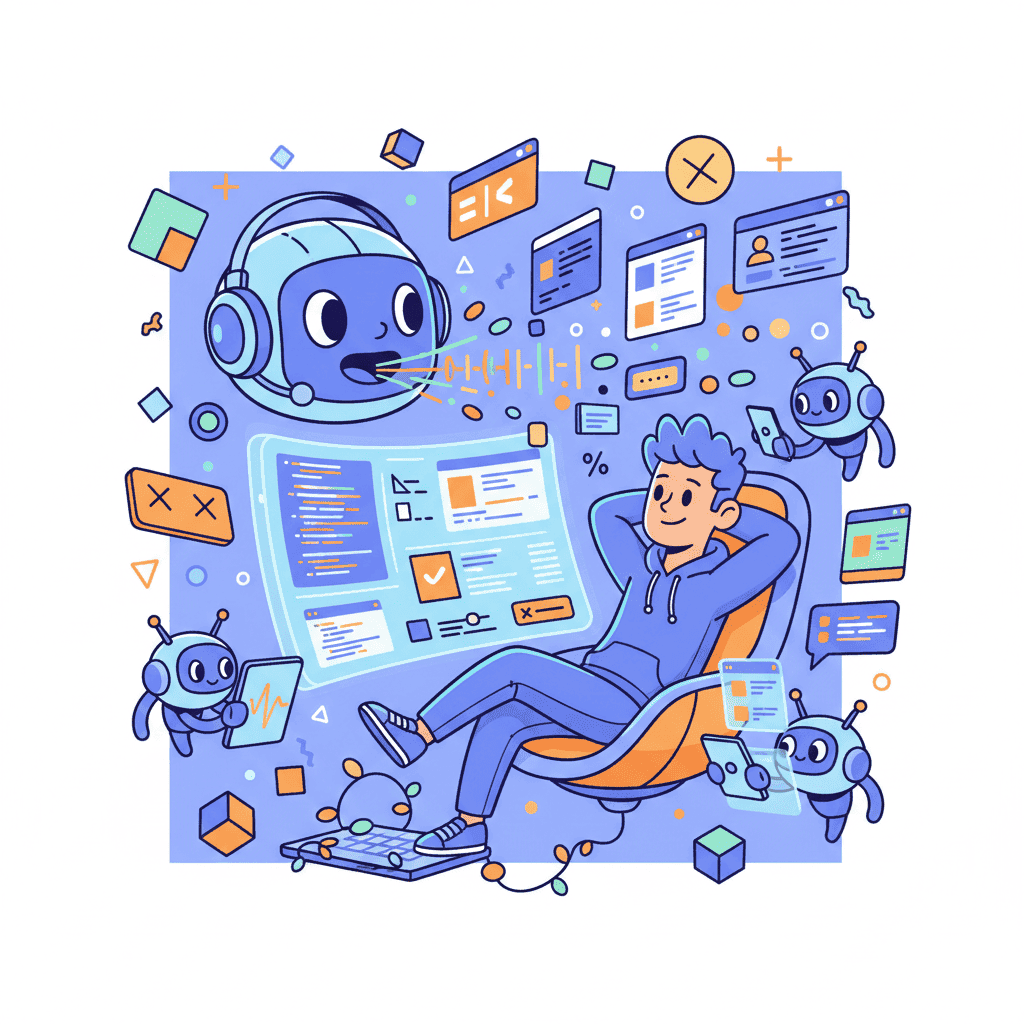
Imagine telling your computer "build me a pricing table with three tiers" and watching it happen. No keyboard. No mouse. Just your voice.
That's voice vibe coding, and it's changing how developers build UIs. With 92% of US developers now using AI coding tools daily, voice input is becoming the next frontier—and honestly? It's wilder than I expected.
Key Takeaways:
- Voice coding works best for structural prompts, not pixel-perfect details
- The hybrid approach (voice + keyboard) is 40% faster than either alone
- You'll sound ridiculous talking to your computer, but it ships faster
- Not all prompts work well with voice—learn when to switch to typing
In This Article
- What is Voice Vibe Coding?
- Why Voice Changes UI Development
- Setting Up Voice Mode
- 10 Voice Prompts That Actually Work
- What Works vs What Doesn't
- The Hybrid Workflow
- Common Voice Coding Mistakes
- When to Use Voice vs Typing
- FAQ
What is Voice Vibe Coding?
Voice vibe coding is exactly what it sounds like: you speak your prompts instead of typing them. Instead of clicking and tapping, you just... talk. "Build a hero section with a gradient background" becomes words you actually say out loud.

It sounds futuristic. It also sounds kind of absurd. But here's the thing—it actually works. And once you get past the initial awkwardness of talking to your laptop like it's a person, you realize something: natural language is literally what these AI models are optimized for. Why were we ever typing?
The core idea maps perfectly to traditional vibe coding—you describe what you want in plain language, and AI generates the code. Voice just removes the keyboard from the equation.
Why Voice Changes UI Development
I'm going to be honest with you: I was skeptical. Typing is fast. I've been doing it for years. Why would I want to talk to my computer?
Then I tried it. Three things happened:
1. Speed for complex descriptions
Typing "build me a responsive navigation bar with a logo on the left, three menu items in the center, and a sign up button on the right with a dropdown menu for mobile" takes forever. Saying it takes 8 seconds.
2. Hands-free iteration
My hands are free while prompting. I can sketch on paper, look at reference designs, or literally pace around the room while my UI gets built. This sounds trivial until you try it.
3. Natural language flows better
When you type, you tend to write in bullet points. Short phrases. Keywords. When you talk, you describe things the way you'd explain them to a human. And honestly? That's exactly how LLMs want to receive information.
| Method | Avg. Time per Prompt | Natural Flow | Best For |
|---|---|---|---|
| Typing | 45-60 seconds | Medium | Technical details |
| Voice | 8-15 seconds | High | Structure, layout |
| Hybrid | 20-30 seconds | Highest | Complete workflows |
Setting Up Voice Mode
Voice mode is available in AI coding tools that support speech-to-text input. The setup varies by platform, but the core workflow is similar across most tools.

Step 1: Enable Voice Input
Most modern operating systems have built-in speech-to-text. On macOS, hit Fn twice. On Windows, use Win + H. But for serious voice coding, you'll want something more robust.
Step 2: Configure Your Environment
A few things that make voice coding smoother:
- Decent microphone: Your laptop mic works, but a headset or desk mic reduces errors
- Quiet space: Background noise kills transcription accuracy
- Practice phrases: AI models have their own vocabulary—learn the words that work
Step 3: Test with Simple Prompts
Start with something basic:
"Build a simple button component with blue background and white text"
If your transcription messes this up, fix your mic setup before moving on. Nothing kills flow faster than constantly correcting misheard words.
10 Voice Prompts That Actually Work for UI Components
Here's the part you came for. These are voice prompts I've tested extensively. They work because they're structured for how speech-to-text actually processes language.
1. Hero Section
"Build a hero section with a large heading that says 'Ship Faster', a subtitle underneath, and a call to action button. Center everything. Use a gradient from blue to purple in the background."
Notice how I didn't say "gradient-from-blue-500-to-purple-600". Voice works better with natural descriptions.
2. Pricing Table
"Create a pricing table with three tiers: Basic, Pro, and Enterprise. Each tier should have a price, a list of features, and a button. Highlight the middle tier as recommended."
3. Navigation Bar
"Build a navigation bar with a logo on the left, three links in the middle, and a sign up button on the right. Make it sticky and add a shadow on scroll."
4. Feature Grid
"Create a features section with a six-item grid. Each item should have an icon, a title, and a short description. Two columns on mobile, three on desktop."
5. Testimonial Carousel
"Build a testimonial section with a carousel of three customer quotes. Include their photo, name, title, and company. Auto-advance every five seconds."
6. Contact Form
"Create a contact form with name, email, and message fields. Add validation and a submit button. Show a success message after submission."
7. Footer
"Build a footer with four columns: Product, Company, Resources, and Legal. Add a newsletter signup at the bottom and social media icons."
8. Stats Section
"Create a stats section showing four numbers: users, countries, uptime percentage, and support tickets. Animate the numbers counting up on scroll."
9. FAQ Accordion
"Build an FAQ section with five questions. Use an accordion so only one answer shows at a time. Add smooth expand animations."
10. Card Grid
"Create a grid of cards for blog posts. Each card has an image, title, date, and read more link. Show three cards per row on desktop."
Want to try this yourself?
Voice Commands: What Works and What Doesn't
After hundreds of voice prompts, here's the uncomfortable truth: voice isn't universally better. It's a tool. And like any tool, it has its place.
Works Amazingly
- Structural layouts: "Build a three-column layout with sidebar"
- Component descriptions: "Create a card with image, title, and CTA"
- High-level features: "Add dark mode toggle to the navbar"
- Iterations: "Make the button bigger and add a hover effect"
Works Okay
- Specific styling: "Use Tailwind blue-600 for the background"
- Responsive breakpoints: "Stack on mobile, side by side on desktop"
- State management: "Add loading and error states to the form"
Doesn't Work Well
- Complex code snippets: Voice can't easily dictate curly braces and syntax
- Exact values: "margin-top: 2.5rem" gets mangled by transcription
- Long technical terms: "useTransition", "IntersectionObserver"
The Hybrid Workflow: Voice Plus Keyboard
This is the hill I'll die on: pure voice coding is slower than hybrid.
The fastest workflow I've found combines both:
- Voice for initial structure: Describe the overall component
- Review the output: See what the AI generated
- Voice for major iterations: "Make it wider", "Add a shadow"
- Keyboard for refinement: Fix specific values, tweak CSS classes
It's like sketching vs. detailing. Voice is your rough sketch. Keyboard is your fine-tipped pen.
If you're new to vibe coding in general, start with the fundamentals in our beginner's guide before jumping into voice mode. The core skills transfer directly.
Sample Hybrid Session
Here's how a real session might look:
Voice: "Build a signup form with email and password fields" AI generates basic form
Voice: "Add a 'remember me' checkbox and social login buttons" AI updates form
Keyboard: Change button from bg-blue-500 to match brand color bg-indigo-600
Voice: "Add validation messages below each field" AI adds validation UI
Total time? Maybe 90 seconds for a complete, styled signup form. Try doing that with typing alone.
Common Voice Coding Mistakes (and How to Fix Them)
I've made every mistake possible so you don't have to. Here are the biggies:
Mistake 1: Being Too Vague
❌ "Make it look better" ✅ "Increase the padding, add a subtle shadow, and use a slightly rounded border"
Voice encourages rambling. But vague prompts get vague results. Be specific about what you want changed.
Mistake 2: Including Code in Voice
❌ "Add class name equals flex justify center" ✅ "Center the content horizontally using flexbox"
Let the AI figure out the syntax. You describe the outcome.
Mistake 3: Speaking Too Fast
Transcription accuracy drops when you speed-run your sentences. Slow down. Pause between phrases. Your future self (and your code) will thank you.
Mistake 4: Forgetting Context
AI doesn't always remember what you said 5 minutes ago. If you're managing long sessions, check out our guide on context window mastery to keep things on track.
Mistake 5: Not Using Keywords
Some words just work better than others:
| Instead of... | Say... |
|---|---|
| "Put things next to each other" | "Horizontal layout" or "Side by side" |
| "Make it move" | "Add animation" or "Animate on hover" |
| "Look like Apple" | "Minimal design with lots of whitespace" |
When to Use Voice vs Typing
Not every situation calls for voice. Here's my decision framework:
Use Voice When:
- Starting a new component from scratch
- Making big structural changes
- Iterating on layout and spacing
- You're brainstorming and want to explore ideas fast
- Your hands are tired (seriously, this matters)
Use Typing When:
- Fixing specific bugs in generated code
- Working with exact values (colors, spacing, breakpoints)
- In a meeting or shared space (your coworkers will thank you)
- Dealing with technical terms the transcription mangles
Hot Take: If you're doing agentic coding workflows where AI runs autonomously, voice for the initial goal + typing for constraints is the sweet spot.
The Future is Hands-Free (Sort Of)
Voice vibe coding isn't going to replace typing. But it's a genuine productivity boost when used right. The key is knowing when to talk and when to type.
My current setup? I start most components with voice, let AI handle the heavy lifting, then drop to keyboard for the finishing touches. It's weird. It works. And honestly, it's kind of fun to just... talk your UI into existence.
The 92% of developers using AI tools daily aren't all typing their prompts. More and more are speaking them. And once you get past the awkwardness, you might find yourself never going back.
You Might Also Like
- Vibe Coding: The Complete Guide - Master the fundamentals before adding voice
- 50 Vibe Coding Prompts That Work - Ready-to-use templates for any component
- Agentic Coding Frontend Tutorial - Let AI build while you supervise
Frequently Asked Questions
What is voice vibe coding?
Voice vibe coding is a development approach where you speak your prompts to AI instead of typing them. You describe UI components and features in natural language, and the AI generates the code. It combines speech-to-text technology with AI code generation for a hands-free development experience.
How accurate is voice transcription for coding?
Modern speech-to-text is very accurate for natural language descriptions. Where it struggles is technical terms and code syntax—that's why a hybrid approach works best. Describe concepts in plain language and let the AI translate to code.
Do I need special equipment for voice coding?
Not necessarily. Built-in laptop microphones work, though a dedicated headset or desk microphone improves accuracy and reduces background noise issues. The bigger factor is a quiet environment.
Is voice coding faster than typing?
For structural prompts and initial component creation, yes—often 3-4x faster. For technical refinements and specific values, typing is still king. The hybrid approach combining both methods tends to be fastest overall.
Can I use voice coding with any AI tool?
Most AI coding tools accept text input, so any tool with system-level voice-to-text (like macOS Dictation or Windows Speech Recognition) can technically do voice coding. Some platforms have native voice mode features built in, which offer smoother integration.
Written by the Fardino Team. We build AI tools for frontend developers. Try Fardino free →