Back to Guides

AI Navbar & Footer Prompts: 40+ Templates

I've built 200+ pages with AI. The navbar and footer always sucked—until I figured out these prompts.

AI Navbar & Footer Prompts: 40+ Templates - Featured Image

Let me tell you something nobody mentions in vibe coding tutorials: your landing page can be stunning, your dashboard pixel-perfect, your forms beautifully validated—but if your navbar looks like a Bootstrap template from 2016? The whole thing falls apart.

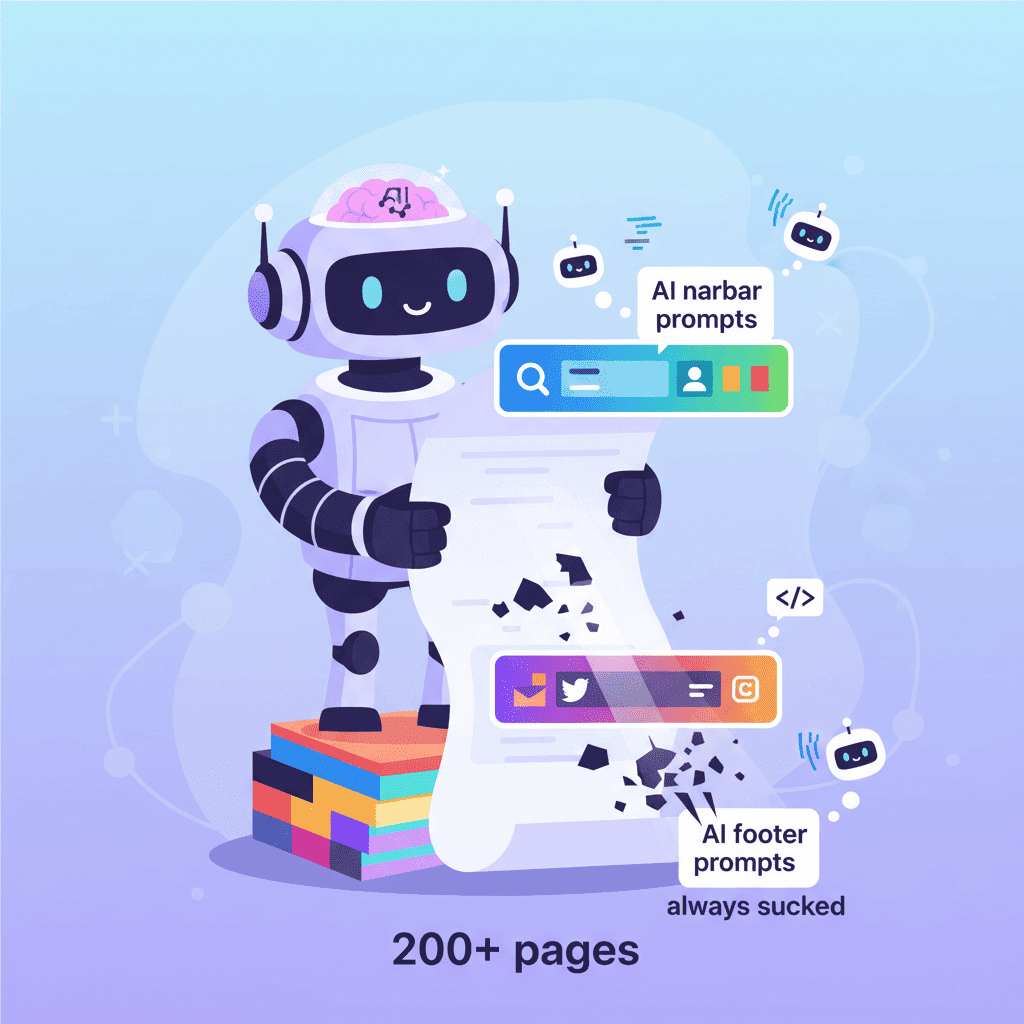
I've built over 200 pages using AI tools. And for the longest time, the navigation and footer were my weakest links. Not because AI can't generate them, but because most prompts suck.

Key Takeaways:

  • Simple prompts create generic navbars—specificity is what gets you professional results
  • Footer prompts need explicit section structure or AI will miss critical elements
  • Combining navbar and footer prompts with cohesive styling creates polished, consistent layouts

In This Article

Why Navigation & Footers Are Harder Than They Look

Here's my hot take: navbars and footers are deceptively complex. They seem simple—a logo, some links, maybe a button. But throw in mobile responsiveness, sticky behavior, mega menus, and suddenly you're debugging z-index issues at 2am.

In This Article

The problem with most AI navbar prompts is they're too vague. "Create a navbar" gives you something that works. "Create a responsive navbar with logo left, centered nav links with hover underline animation, and a CTA button that changes color on scroll" gives you something that ships.

Same with footers. They're not just the bottom of your page—they're where users go when they're lost, looking for contact info, or checking your legitimacy. A bad footer kills trust.

Let's fix both.

Part 1: AI Navbar Prompts That Work

Start here if you need something clean. These prompts generate minimal navbars that don't try to do too much.

Basic Clean Navbar:

Create a responsive React navbar component with Tailwind CSS: - Logo (text or image placeholder) on the left - 5 navigation links centered: Home, Features, Pricing, About, Contact - Hamburger menu on mobile that slides in from right - White background with subtle shadow - Links have underline animation on hover

Minimal Dark Navbar:

Build a minimal dark navbar using React and Tailwind: - Logo as white text on the left - 4 nav links on the right: Products, Solutions, Resources, Company - No background, just the links - On scroll, add a dark semi-transparent background - Mobile: hamburger menu with full-screen overlay

Want to try this yourself?

Try with 0xMinds →

Startup Navbar with CTA:

Create a SaaS startup navbar in React/Tailwind: - Logo on left - Nav links center: Features, Pricing, Docs, Blog - Right side: "Sign In" text link + "Get Started" primary button - Sticky on scroll with white background and bottom border - Mobile: logo + hamburger, menu shows all links stacked

1.2 Dropdown Navigation Prompts

When you've got more than 6 top-level items, dropdowns save the day. The trick is specifying exactly what goes where.

Simple Dropdown Navbar:

Build a React navbar with dropdown menus using Tailwind: - Logo left - Nav items: Products (dropdown), Solutions (dropdown), Pricing, Resources (dropdown), Company - Products dropdown: 4 items with icons and descriptions in a grid - Solutions dropdown: 3 items, simple list - Resources dropdown: Blog, Documentation, Help Center, Community - Dropdown opens on hover with smooth fade animation - Mobile: accordion-style dropdowns

E-commerce Category Navbar:

Create an e-commerce navigation header with React and Tailwind: - Top bar: Free shipping message + currency selector - Main nav: Logo left, search bar center, cart/account icons right - Category bar below: Women, Men, Kids, Sale (each with dropdown) - Dropdowns show category images + subcategory links - Sticky main nav on scroll (top bar disappears)

1.3 Mega Menu Prompts

Mega menus are where things get interesting. Here's where you need to be really specific or AI will give you a mess.

SaaS Mega Menu:

Build a professional mega menu navbar in React with Tailwind: - Logo on left, nav items center, "Book Demo" button right - "Products" mega menu: 3 columns - Column 1: Main products (4 items with icons, titles, descriptions) - Column 2: Platform features (6 items, simple list) - Column 3: Featured case study card with image - "Solutions" mega menu: 2 columns by industry - "Resources" mega menu: Blog, guides, webinars, documentation - Smooth slide-down animation, close on outside click - Dark overlay on rest of page when mega menu open

Want to try this yourself?

Try with 0xMinds →

Agency Portfolio Mega Menu:

Create a creative agency mega menu navbar: - Logo left (animated on hover) - Nav: Work, Services, About, Careers, Contact - "Work" mega menu: Full-width, shows 4 featured project thumbnails with titles - "Services" mega menu: 2 columns of services with hover effects - Background blur effect when menu is open - Smooth height animation when switching between menus

1.4 Mobile-First Hamburger Menu

Mobile navigation is where most AI-generated navbars break. These prompts focus on the mobile experience.

Smooth Slide-In Menu:

Build a mobile-first React navbar with Tailwind: - Desktop: Logo left, 5 nav links centered, CTA button right - Mobile: Logo + hamburger icon - Hamburger menu: slides in from right, covers 80% of screen - Menu has: logo at top, nav links stacked, CTA at bottom - Close button (X) in top right - Background overlay that closes menu on click - Body scroll locked when menu open

Full-Screen Mobile Menu:

Create a navbar with full-screen mobile menu using React/Tailwind: - Desktop: transparent navbar with white text - Mobile: hamburger icon - Full-screen menu with dark background - Large centered nav links that animate in sequentially - Social media icons at bottom - Menu opens with smooth fade, links slide up one by one

Bottom Mobile Navigation:

Build a mobile-first navigation with bottom nav bar: - Desktop: standard horizontal navbar - Mobile: fixed bottom nav with 5 icons - Home, Search, Add (center, larger), Notifications, Profile - Active state shows filled icon + label - Top navbar hidden on mobile, shows on scroll up - Use Tailwind for styling, smooth transitions

1.5 Sticky/Transparent Header Prompts

Headers that change on scroll add that professional polish. But you need to specify the transitions.

Transparent to Solid Navbar:

Create a React navbar that transitions from transparent to solid: - Initial state: transparent background, white text/logo - On scroll (past 100px): white background, dark text, subtle shadow - Logo changes from white to colored version - Smooth 300ms transition for all changes - Reduce navbar height slightly on scroll - Works on both desktop and mobile

Shrinking Sticky Header:

Build a sticky header that shrinks on scroll using React and Tailwind: - Initial: 80px height, large logo, spaced out nav links - Scrolled: 60px height, smaller logo, tighter spacing - Background gains shadow on scroll - Smooth transitions for all size changes - Nav links hide labels on mobile, show icons only

Hide on Scroll Down, Show on Scroll Up:

Create a smart navbar that hides/shows based on scroll direction: - Fixed position navbar - Scrolling down: navbar slides up out of view - Scrolling up: navbar slides back into view - Always visible at top of page - Smooth slide animation (300ms) - Works correctly with mobile browsers

Footers matter more than most people think. When someone scrolls to the bottom, they're either done or looking for something specific. Give them what they need.
Why Navigation & Footers Are Harder Than They Look

Sometimes less is more. These work great for apps, tools, and simple marketing sites.

Super Simple Footer:

Create a minimal React footer with Tailwind: - Single row: Logo left, copyright center, social icons right - Dark gray background (#1a1a1a), light text - Social icons: Twitter, GitHub, LinkedIn - Responsive: stacks vertically on mobile - No unnecessary links, just the essentials

Clean Two-Row Footer:

Build a clean minimal footer in React/Tailwind: - Row 1: Logo left, essential links right (Privacy, Terms, Contact) - Row 2: Copyright text left, social icons right - Light gray background, dark text - Subtle top border - Links have hover underline animation

The classic footer layout. Specify your columns or AI will guess.

4-Column Footer:

Create a professional 4-column footer using React and Tailwind: - Column 1: Logo, company tagline (2 lines), social icons - Column 2: Product links (Features, Pricing, Integrations, Changelog) - Column 3: Company links (About, Careers, Blog, Press) - Column 4: Resources (Documentation, Help Center, API, Status) - Bottom bar: Copyright left, language selector right - Dark background (#0f172a), organize columns in grid - Mobile: single column, accordion sections for each column

Want to try this yourself?

Try with 0xMinds →

SaaS Footer with App Downloads:

Build a SaaS footer with app download section: - Top section: Large CTA "Ready to get started?" with email input + button - 4 link columns: Product, Solutions, Resources, Company - Column 5: Download section with App Store and Google Play badges - Bottom bar: Logo, copyright, privacy/terms links - Trust badges: SOC2, GDPR compliant icons

Newsletter footers are conversion machines when done right.

Newsletter-Focused Footer:

Create a footer with prominent newsletter signup using React/Tailwind: - Top section with gradient background: - "Stay updated" heading - Subtext about what subscribers get - Email input + "Subscribe" button inline - Small text: "No spam. Unsubscribe anytime." - Below: 3 columns of links (Product, Company, Legal) - Bottom bar: copyright and social icons - Input has focus animation, button has hover state

Blog Footer with Categories:

Build a blog footer with newsletter and categories: - Newsletter section: Large heading, email input, subscribe button - Column 1: Popular categories (8 items) - Column 2: Popular tags as pill buttons - Column 3: About section with short bio and social links - Bottom: Recent posts (3 items with titles and dates) - Copyright bar at very bottom

For sites that need to tick compliance boxes.

Enterprise Footer:

Create an enterprise footer with full legal section: - 5 columns: Products, Solutions, Resources, Partners, Company - Each column: 6-8 links - Social icons row below columns - Legal bar: Privacy Policy, Terms of Service, Cookie Settings, Accessibility - Regional selector: Flag icon + dropdown for country - Copyright with company legal name - Gray background, professional styling

Creative Agency Footer:

Build a bold creative agency footer: - Large "Let's work together" text with email link - Address and phone number - 3 social icons (large, circular, hover animation) - Simple nav links: Work, About, Careers - Copyright at bottom - Dark background, white text, one accent color for links - Add subtle grain texture to background

Here's the thing nobody tells you—your navbar and footer need to feel like they belong together. Same fonts, same color values, same spacing system.

3.1 Cohesive Design System Prompts

Matched Header/Footer Pair:

Create a matching navbar and footer component pair in React/Tailwind: NAVBAR: - Logo left, 5 nav links center, "Get Started" button right - White background, dark text (#1e293b) - Primary color for button: #6366f1 - Links have hover color change to primary FOOTER: - Same background as navbar (white) - Same logo, same primary color for links - 4 columns using same text colors - Newsletter section uses primary color button - Bottom bar matches navbar's top border style Shared: - Font: Inter - Same spacing scale - Same border-radius on buttons - Consistent hover transitions

Dark Theme Header/Footer:

Build a dark theme navbar and footer set: Both components should use: - Background: #0a0a0a - Text: #e5e5e5 - Accent: #22d3ee (cyan) - Subtle border color: #262626 NAVBAR: Logo, 4 nav links, CTA button with accent color FOOTER: 4 columns, newsletter input with accent button, social icons Make sure hover states, focus states, and transitions match between both.

3.2 Complete Page Layout Prompts

Sometimes you want it all at once.

Complete Landing Page Frame:

Create a complete page layout with navbar and footer: NAVBAR: - Transparent, becomes white on scroll - Logo, Products dropdown, Pricing, About, Sign In, "Start Free" button - Mobile hamburger menu FOOTER: - Dark section (#111827) - Logo + tagline - 4 link columns - Newsletter signup - Social icons - Copyright bar Both use same: - Primary: #3b82f6 - Font: system-ui - Border radius: 8px for buttons - Smooth transitions Create as separate exportable components that can wrap any content.

Want to try this yourself?

Try with 0xMinds →

Quick Reference: Prompt Elements Cheatsheet

ElementWhat to SpecifyExample
LogoPosition, size, light/dark versions"Logo left, 32px height, white on dark bg"
Nav LinksCount, names, alignment"5 links centered: Home, Features, Pricing, About, Contact"
CTA ButtonText, color, position"Blue 'Get Started' button on right"
Mobile MenuType, animation, position"Hamburger, slides from right, 80% width"
Scroll BehaviorEffect, trigger point"Solid white background after 100px scroll"
Footer ColumnsNumber, content per column"4 columns: Product, Company, Resources, Legal"
NewsletterPosition, fields, button"Email input + Subscribe button in footer top"

You Might Also Like

Frequently Asked Questions

How do I generate a responsive navbar with AI?

The key is specifying both desktop AND mobile behavior in your prompt. Tell the AI exactly what happens on mobile—hamburger icon position, how the menu opens (slide, overlay, accordion), and which elements are hidden. Vague prompts get vague results.

What prompts work best for navigation menus?

Prompts that specify: link names, their positions (left/center/right), any dropdowns and their contents, mobile behavior, scroll effects, and color scheme. The more specific you are about interactions and transitions, the better the output.

At minimum: logo, navigation links, copyright notice. For most sites, also include: contact information, social links, legal pages (privacy/terms), and a newsletter signup. Enterprise sites need: multiple link columns, regional selectors, trust badges, and accessibility links.

Use the same colors, fonts, spacing values, and border radii. Either generate them together in one prompt specifying shared design tokens, or create a "style guide" section in each prompt listing the exact same values.

Can AI generate mega menus?

Yes, but you need detailed prompts. Specify: how many columns, what goes in each column (icons? descriptions? images?), animation behavior, and how the mega menu closes. Without this detail, you'll get a basic dropdown instead.


The navbar and footer might seem like small details. But they're the frame around everything else you build. Get them right, and your AI-generated pages start looking like they were built by a design team, not generated in 30 seconds.

Now take these prompts and actually use them. Customize the colors, swap out the link names, make them yours. That's the whole point.


Written by the 0xMinds Team. We build AI tools for frontend developers. Try 0xMinds free →

<!-- SCHEMA_DATA { "article": { "@type": "Article", "headline": "AI Navbar & Footer Prompts: 40+ Templates", "description": "I've built 200+ pages with AI. The navbar and footer always sucked—until I figured out these prompts.", "author": { "@type": "Organization", "name": "0xMinds", "url": "https://0xminds.com" }, "datePublished": "2025-12-16", "dateModified": "2025-12-16" }, "faq": [ { "question": "How do I generate a responsive navbar with AI?", "answer": "The key is specifying both desktop AND mobile behavior in your prompt. Tell the AI exactly what happens on mobile—hamburger icon position, how the menu opens (slide, overlay, accordion), and which elements are hidden. Vague prompts get vague results." }, { "question": "What prompts work best for navigation menus?", "answer": "Prompts that specify: link names, their positions (left/center/right), any dropdowns and their contents, mobile behavior, scroll effects, and color scheme. The more specific you are about interactions and transitions, the better the output." }, { "question": "What should a website footer include?", "answer": "At minimum: logo, navigation links, copyright notice. For most sites, also include: contact information, social links, legal pages (privacy/terms), and a newsletter signup. Enterprise sites need: multiple link columns, regional selectors, trust badges, and accessibility links." }, { "question": "How do I make navbar and footer look consistent?", "answer": "Use the same colors, fonts, spacing values, and border radii. Either generate them together in one prompt specifying shared design tokens, or create a style guide section in each prompt listing the exact same values." }, { "question": "Can AI generate mega menus?", "answer": "Yes, but you need detailed prompts. Specify: how many columns, what goes in each column (icons? descriptions? images?), animation behavior, and how the mega menu closes. Without this detail, you'll get a basic dropdown instead." } ], "breadcrumb": ["Home", "Blog", "Guides", "AI Navbar & Footer Prompts: 40+ Templates"] } SCHEMA_DATA -->
Share this article




