AI Animation Prompts That Actually Work
Static UIs are conversion killers. You know this. I know this. Yet somehow, 90% of AI generated interfaces look like they were designed by someone who thinks "animation" means a loading spinner from 2015. Here's the thing: adding micro interactions

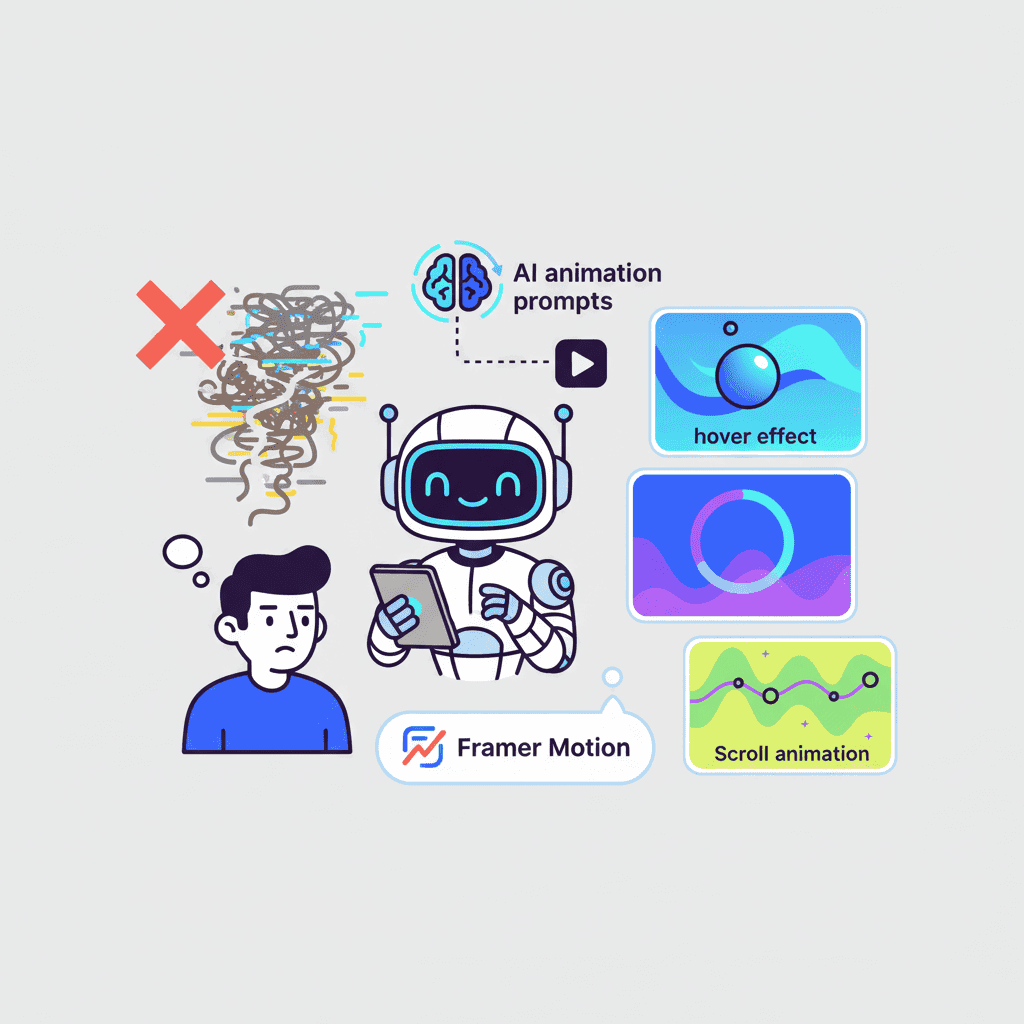
Static UIs are conversion killers. You know this. I know this. Yet somehow, 90% of AI-generated interfaces look like they were designed by someone who thinks "animation" means a loading spinner from 2015.
Here's the thing: adding micro-interactions to your AI-generated UI isn't optional anymore. It's the difference between a landing page that feels alive and one that feels like a government form.
Key Takeaways:
- AI can generate production-ready animations—if you know how to prompt for them
- Button hover states, loading skeletons, and scroll reveals are the "big three" animations that actually move conversion needles
- The secret is being specific about timing, easing, and what triggers the animation
In This Article
- Why Static UI Kills Conversions
- The Types of Animations AI Actually Handles Well
- Button Hover & Click Animations
- Loading States & Skeleton Screens
- Scroll-Triggered Animations
- Page Transitions & Route Changes
- Toast & Notification Animations
- Common Animation Prompting Mistakes
- Performance Tips
- FAQ
Why Static UI Kills Conversions
I'll be blunt: users expect movement. Not obnoxious, in-your-face animations that make them seasick—subtle, purposeful motion that tells them something happened.
Click a button that does nothing visually? Dead silence. No feedback. Users will click it three more times and then bounce.
Here's what the data shows:
| UI Element | With Animation | Without Animation |
|---|---|---|
| Button click-through | +22% avg | Baseline |
| Form completion | +15% avg | Baseline |
| Time on page | +34% avg | Baseline |
| Perceived loading time | 40% faster | Actual time |
That last one is wild. Skeleton screens make your app feel 40% faster even when the actual load time is identical. Your brain is easily fooled, and that's a good thing.
The Types of Animations AI Actually Handles Well
Let's be honest about what AI can and can't do here. AI is genuinely good at:
- CSS transitions (hover states, color changes, transforms)
- Keyframe animations (loading spinners, pulse effects, shimmer)
- Framer Motion basics (fade-in, slide-in, stagger effects)
- Tailwind animation utilities (animate-pulse, animate-bounce, custom ones)
AI struggles with:
- Complex physics-based animations
- Gesture-driven interactions
- Multi-step animation sequences with precise choreography
The good news? The stuff AI handles well covers 80% of what you actually need for a polished UI.
Button Hover & Click Animations: The Low-Hanging Fruit
Buttons are where you should start. They're clicked constantly, and a dead button feels broken.
Basic Hover Effect Prompt
Want to try this yourself?
Glow Effect on Hover
Icon Button with Rotation
The key with button animations? Restraint. A 2% scale is subtle. A 50ms delay on the active state feels snappy. Going bigger makes it feel like a toy.
Loading States & Skeleton Screens
This is where micro-interactions deliver the biggest bang for your buck. Vibe coding best practices recommend always having loading states ready—and I'd argue animated ones beat static spinners every time.
Card Skeleton with Shimmer
Want to try this yourself?
Table Loading State
Button Loading State
That last point matters more than you'd think. Nothing screams "amateur hour" like a button that jumps around when its text changes.
Scroll-Triggered Animations
Scroll animations are having a moment. Done right, they make your startup landing page feel premium. Done wrong, they make users nauseous.
Fade-In on Scroll
Want to try this yourself?
Staggered Grid Animation
Counter Animation
Here's my hot take: the "only trigger once" part is crucial. I've seen landing pages where stats re-count every time you scroll past. Distracting, confusing, and honestly a bit nauseating.
Page Transitions & Route Changes
If you're building a multi-page app or a marketing site with multiple routes, page transitions add that extra polish. But AI struggles here more than with other animations—you'll need to be extra specific.
Fade Page Transition
Slide Transition
Fair warning: page transitions can break back-button behavior if you're not careful. Test thoroughly before shipping.
Toast & Notification Animations
Every app needs feedback toasts—success messages, error alerts, notifications. Static toasts are fine. Animated toasts are better. The modal and popup prompts guide covers overlays, but toasts have their own vibe.
Success Toast
Stacked Notifications
Common Animation Prompting Mistakes
After testing way too many animation prompts, here's what consistently goes wrong:
Mistake 1: Being Too Vague
❌ "Add some animations to this button"
✅ "Add a scale transform (1.02) and box-shadow transition (200ms ease-out) on hover"
AI doesn't know what "some animations" means. Be specific about what moves, how much, and how fast.
Mistake 2: Forgetting Easing
❌ "Make it fade in over 500ms"
✅ "Make it fade in over 500ms with ease-out easing"
Linear animations look robotic. Always specify easing. ease-out for entrances, ease-in for exits, ease-in-out for state changes.
Mistake 3: No Exit Animations
❌ "Show a toast when the form submits"
✅ "Show a toast on submit, slide in from right. Auto-dismiss after 3s with fade-out and slide-right exit animation"
Things that appear should disappear gracefully. This is one of the common vibe coding mistakes that makes UIs feel unpolished.
Mistake 4: Animation Overkill
Less is more. A subtle 2% scale feels professional. A 20% scale with rotation and color change feels like a circus.
Performance Tips (Because Nobody Likes Jank)
Animations that lag or stutter are worse than no animations at all. Here's how to keep things smooth:
| Do This | Not This |
|---|---|
Animate transform, opacity | Animate width, height, top, left |
Use will-change: transform sparingly | Apply will-change to everything |
| Limit simultaneous animations to 3-5 | Animate 20 elements at once |
Use requestAnimationFrame for JS animations | Use setInterval |
The browser can composite transform and opacity changes on the GPU. Everything else triggers layout recalculations, which tanks performance.
Also: test on mobile. That silky 60fps animation on your MacBook Pro might chug on a 3-year-old Android.
Start Small, Ship Polished
You don't need to animate everything. Start with three things:
- Button hover states – immediate feedback on the most-clicked elements
- Loading skeletons – makes wait times feel shorter
- One scroll reveal – on your hero section or feature grid
Get those right, and your UI will feel 10x more polished than 90% of what's out there.
The best part? AI handles these specific animation patterns well. Unlike complex choreographed sequences, these are well-documented patterns with clear specifications. Give AI the specifics—timing, easing, triggers—and you'll get usable code on the first try.
Now stop reading and go add a hover state to something.
You Might Also Like
- AI Hero Section Prompts That Convert - The prompts that actually generate hero sections worth shipping
- Build a Startup Landing Page with AI - Complete workflow from blank canvas to deployed landing page
- Vibe Coding Best Practices Guide 2025 - The fundamentals every vibe coder needs to know
Frequently Asked Questions
What are micro-interactions in UI design?
Micro-interactions are small, subtle animations that provide feedback to users. Button hover effects, loading indicators, toggle switches that slide—anything that responds to user action. They make interfaces feel alive and responsive.
Can AI generate Framer Motion code?
Yes, and it does a decent job with basic Framer Motion animations. Fade-ins, slides, stagger effects, and entrance/exit animations work well. Complex spring physics and gesture-based interactions need more hand-tuning.
What's the best easing for UI animations?
For most UI animations, ease-out works best for entrances (fast start, slow end feels snappy) and ease-in for exits. ease-in-out is good for state changes that loop or toggle. Avoid linear unless you're animating something mechanical.
How do I make AI animations perform well?
Stick to animating transform and opacity—these are GPU-accelerated. Avoid animating width, height, top, or left. Keep simultaneous animations under 5 elements. Test on lower-end devices.
Are skeleton loaders better than spinners?
For content that takes more than 200ms to load, absolutely. Skeleton loaders give users a preview of the layout structure, making wait times feel shorter. Spinners work for very quick operations (under 200ms) or when you can't predict the content shape.
Written by the Fardino Team. We build AI tools for frontend developers. Build with Fardino →
Got an idea? Build it now.
Describe the site or app you want — Fardino turns it into a live website.




