Build an Admin Panel with AI: Prompts That Work
Here's a confession: my first AI generated admin panel was a disaster. The sidebar looked like it was designed by a caffeinated squirrel. The data tables had columns going off screen. And the "user management" section? Just... don't ask. But


Here's a confession: my first AI-generated admin panel was a disaster. The sidebar looked like it was designed by a caffeinated squirrel. The data tables had columns going off-screen. And the "user management" section? Just... don't ask.
But after building 15 admin panels with AI over the past few months, I've cracked the code. The difference between a messy admin panel and a clean, functional one isn't the AI—it's how you prompt it.
Key Takeaways:
- Admin panels need to be built in sections, not all at once
- Your sidebar prompt determines 50% of the panel's usability
- CRUD interfaces work best when you specify all four operations upfront
- Context engineering beats fancy prompts every time
In This Article
- Why Admin Panels Are Perfect for AI Generation
- The Admin Panel Architecture You Need
- Step 1: The Sidebar That Makes or Breaks Everything
- Step 2: Dashboard Overview with Stats
- Step 3: Data Tables That Actually Work
- Step 4: User Management CRUD
- Step 5: Settings Pages
- Full Admin Panel Prompts
- FAQ
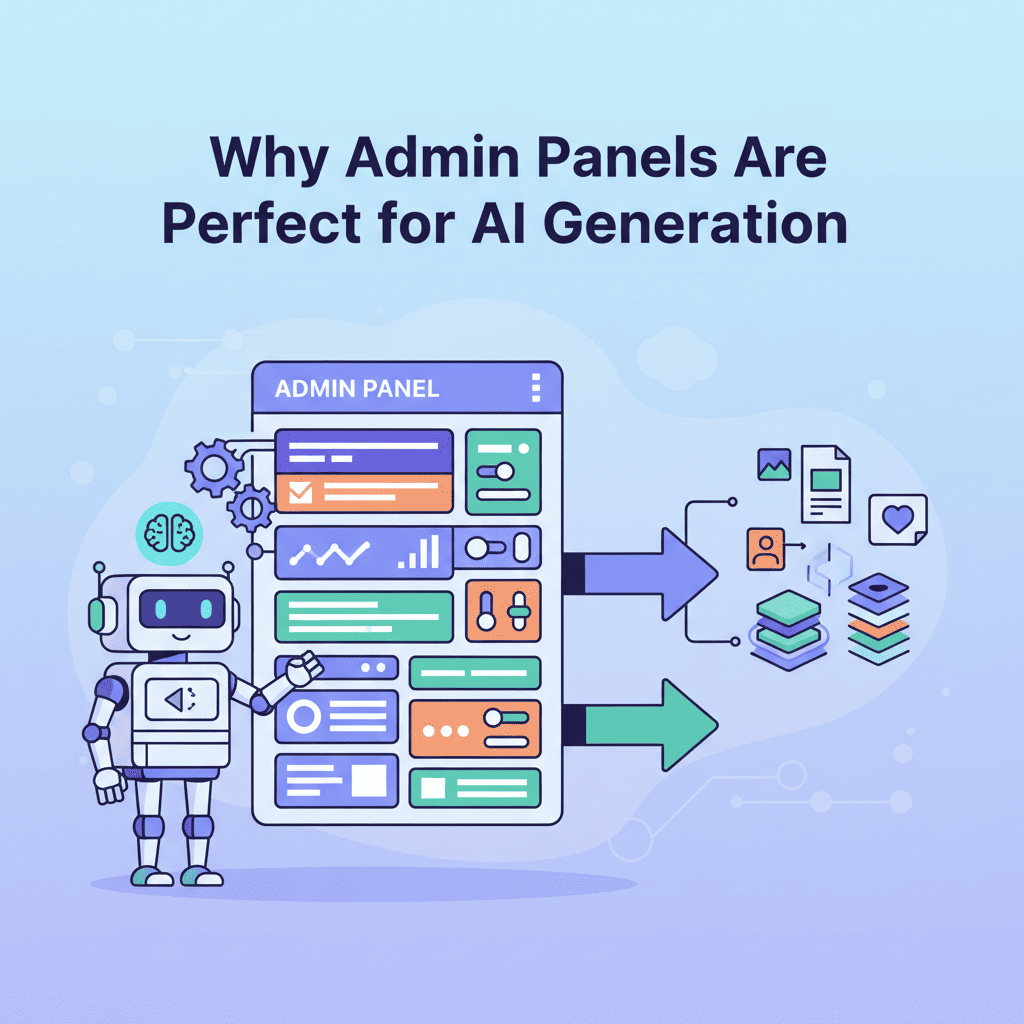
Why Admin Panels Are Perfect for AI Generation
Admin panels are weirdly ideal for vibe coding. Why? Because they're predictable.

Unlike creative marketing pages where AI can hallucinate weird layouts, admin panels follow established patterns. Sidebar on the left. Data tables in the middle. Forms for CRUD operations. Stats cards on the dashboard. AI models have seen thousands of these in their training data.
Here's what I mean:
| Component | Predictability | AI Success Rate |
|---|---|---|
| Sidebar navigation | Very high | 90%+ |
| Stats cards | Very high | 95%+ |
| Data tables | High | 85%+ |
| CRUD forms | Medium-high | 80%+ |
| Settings pages | Medium | 75%+ |
The catch? You need to prompt for each section correctly. Dump "build me an admin panel" into your AI tool and you'll get a generic mess. Break it into components, and suddenly you're getting production-quality UI.
That's the secret: admin panels aren't one prompt—they're five or six prompts stitched together.
The Admin Panel Architecture You Need
Before writing a single prompt, let's map out what a proper admin panel contains. Skip this step and you'll be retrofitting missing pieces later (ask me how I know).
Core sections every admin panel needs:
- Sidebar Navigation – Your users' primary way to move around
- Dashboard Overview – Stats cards, recent activity, quick metrics
- Data Tables – Lists of users, orders, products, whatever you're managing
- CRUD Interfaces – Create, Read, Update, Delete operations
- Settings/Config – System preferences, user account settings
Most tutorials skip the architecture talk and jump straight to prompts. Bad idea. When you understand what you're building, your prompts get 10x better.
Step 1: The Sidebar That Makes or Breaks Everything
This is the hill I'll die on: your sidebar prompt is the most important prompt in the entire admin panel.
Why? Because the sidebar defines your navigation structure. Get it wrong, and every other component feels disconnected. Get it right, and everything just clicks.
Here's a prompt that works:
What makes this prompt work:
- Specific dimensions (250px) prevent AI from guessing
- Color values (slate-900) give exact styling
- Listed navigation items means no hallucinated menus
- Icon library specified (lucide-react) ensures consistency
- Mobile behavior included from the start
The rookie mistake: asking for a sidebar without specifying nav items. The AI will invent random sections like "Reports" and "Notifications" that don't match your app.
For more navigation patterns, check out our AI Navbar & Footer Prompts guide.
Step 2: Dashboard Overview with Stats
Once your sidebar is solid, the dashboard comes next. This is your user's landing page—the first thing they see after login.
Most AI-generated dashboards suffer from the same problem: too many stats, no hierarchy. Five equally-sized cards that all scream for attention.
Here's how to fix that:
Pro tip: Include actual numbers in your prompt. When you write "12,847 users" instead of just "users count," the AI understands the scale and formats accordingly. Real numbers = realistic layouts.
If you want deeper dashboard patterns, we've got a whole guide on AI Dashboard Prompts with 40+ templates.
Want to try this yourself?
Step 3: Data Tables That Actually Work
Data tables are where most AI admin panels fall apart. The AI generates something that looks fine with 3 rows, then explodes when you add real data.
Here's what you need to specify:
Critical details most people miss:
- Combined cells – Name + email in one cell prevents horizontal sprawl
- Badge for status – Visual distinction between active/inactive users
- Empty and loading states – Because real tables aren't always full
- Sample data specified – AI will generate realistic dummy data
This prompt alone will save you hours of "why does my table look broken" debugging.
Step 4: User Management CRUD
CRUD interfaces are the beating heart of any admin panel. This is where you Create, Read, Update, and Delete your data.
The trick with CRUD prompts? Specify all four operations upfront. If you only ask for a "create user form," you'll get inconsistent UI when you later need edit and delete.
Here's my go-to prompt:
Why this works: By describing all four operations together, the AI maintains consistent styling. Your Add and Edit modals will look identical (as they should). Your delete confirmation won't suddenly be a different color scheme.
For more form patterns, check our AI Form Prompts guide.
Step 5: Settings Pages
Settings pages are deceptively complex. They're not just forms—they're organized collections of forms with clear sections and hierarchy.
Here's the prompt structure:
The key insight: Settings pages need sections within sections. The Profile tab has avatar separate from text fields. Security has password change separate from 2FA. Billing has current plan separate from payment methods.
If you just ask for "a settings page," the AI will dump everything into one long form. Nobody wants that.
Full Admin Panel Prompts (Copy-Paste Ready)
Alright, here's the full workflow. Use these prompts in sequence:
Prompt 1: Shell + Sidebar
Prompt 2: Dashboard View
Prompt 3: Users Table + CRUD
Prompt 4: Settings Page
Pro Tips: Making AI Admin Panels Production-Ready
Building the UI is step one. Getting it production-ready is step two. Here's what I've learned:
1. Add loading states everywhere
AI tends to generate static UI. Always follow up with: "Add loading skeleton for the data table" and "Add spinner to the save button while submitting."
2. Handle errors gracefully
Ask for: "Add error toast notification when API calls fail" and "Add form validation error messages."
3. Make it responsive from day one
Include "responsive" in every prompt. If you forget, you'll be retrofitting breakpoints forever.
4. Test with realistic data volumes
That pretty table with 5 rows? Try it with 500. Ask AI to generate pagination that actually works.
5. Review the generated code
AI will sometimes create inline styles or non-semantic HTML. Quick cleanup now saves headaches later. If something breaks, our guide to fixing AI-generated code errors has you covered.
And honestly? The best admin panels I've built weren't from a single prompt session. They're the result of iterating—generating, testing, refining the prompt, generating again. That's just how vibe coding best practices work.
You Might Also Like
- Build a SaaS Dashboard with AI - Analytics-focused dashboard with charts and metrics
- AI Form Prompts: 35+ Templates - Deeper dive into form patterns
- Vibe Coding Best Practices 2025 - Level up your overall AI coding workflow
Frequently Asked Questions
How long does it take to build an admin panel with AI?
With the prompts in this guide, you can get a functional admin panel in 1-2 hours. That includes sidebar, dashboard, data table, CRUD operations, and settings. Compare that to 2-3 days of manual coding. The time savings are real.
Can AI generate a fully working admin panel backend?
No—and that's actually fine. AI UI tools like Fardino generate the frontend: React components, layouts, and styling. You still need to connect it to your backend API. But the frontend is usually 60-70% of the work, so you're still saving massive time.
What's the best AI tool for admin panel generation?
Tools that specialize in frontend React generation work best. The key is using a tool that understands component architecture and can output clean, structured code rather than one giant file. Look for Tailwind CSS support and shadcn/ui compatibility.
Should I build the admin panel all at once or in sections?
Sections, always. One mega-prompt will generate inconsistent UI. Build sidebar first, then dashboard, then data tables, then CRUD, then settings. Each section builds on the last, and you catch issues early.
How do I make AI-generated admin panels look less generic?
Customize after generation. Change the accent color, add your logo, adjust spacing, use your brand fonts. The AI gets you 80% there—the last 20% is your brand polish. Also, specify your color scheme in the initial prompts rather than accepting defaults.
Written by the Fardino Team. We build AI tools for frontend developers. Build with Fardino →
<!-- SCHEMA_DATA { "article": { "@type": "Article", "headline": "Build an Admin Panel with AI: Prompts That Work", "description": "I've built 15 admin panels with AI. Most prompts generate chaos. Here's the exact workflow that produces clean, functional admin UIs.", "author": { "@type": "Organization", "name": "Fardino", "url": "https://fardino.com" }, "datePublished": "2025-12-17", "dateModified": "2025-12-17" }, "faq": [ { "question": "How long does it take to build an admin panel with AI?", "answer": "With the prompts in this guide, you can get a functional admin panel in 1-2 hours. That includes sidebar, dashboard, data table, CRUD operations, and settings. Compare that to 2-3 days of manual coding." }, { "question": "Can AI generate a fully working admin panel backend?", "answer": "No—AI UI tools generate the frontend: React components, layouts, and styling. You still need to connect it to your backend API. But the frontend is usually 60-70% of the work, so you're still saving massive time." }, { "question": "What's the best AI tool for admin panel generation?", "answer": "Tools that specialize in frontend React generation work best. Look for Tailwind CSS support and shadcn/ui compatibility, and tools that output clean, structured code rather than one giant file." }, { "question": "Should I build the admin panel all at once or in sections?", "answer": "Sections, always. One mega-prompt will generate inconsistent UI. Build sidebar first, then dashboard, then data tables, then CRUD, then settings." }, { "question": "How do I make AI-generated admin panels look less generic?", "answer": "Customize after generation. Change the accent color, add your logo, adjust spacing, use your brand fonts. Specify your color scheme in the initial prompts rather than accepting defaults." } ], "howto": { "name": "How to Build an Admin Panel with AI", "steps": [ {"name": "Create the sidebar navigation", "text": "Build a fixed sidebar with dark background, navigation items, icons, and mobile responsiveness. This defines your entire panel structure."}, {"name": "Generate the dashboard overview", "text": "Add stats cards with real numbers, charts for data visualization, and a recent activity feed. Specify component libraries like Recharts."}, {"name": "Build data tables with filtering", "text": "Create tables with sortable columns, search filtering, pagination, and proper loading/empty states."}, {"name": "Add CRUD interfaces", "text": "Generate Create, Read, Update, Delete modals together to ensure consistent styling across all operations."}, {"name": "Create settings pages with tabs", "text": "Build tabbed settings for Profile, Notifications, Security, and Billing with appropriate form controls for each."} ] }, "breadcrumb": ["Home", "Blog", "Tutorials", "Build an Admin Panel with AI: Prompts That Work"] } SCHEMA_DATA -->Got an idea? Build it now.
Describe the site or app you want — Fardino turns it into a live website.