

So you've been vibe coding for a while now. You've generated dozens of components — maybe hundreds. And somewhere around component number thirty, you had that sinking feeling: didn't I write this exact same prompt last week?
Yeah. You did. And the week before that.
Here's the thing nobody tells you about vibe coding in 2026: the bottleneck isn't the AI. It's you, rewriting the same instructions over and over like some kind of prompt-amnesia loop. The developers who are actually shipping fast? They've built a vibe coding prompt library — a personal collection of tested, reusable prompts they pull from like a toolbox.
This isn't theory. In our experience, developers who organize their prompts spend dramatically less time fixing AI output — we've seen teams cut revision cycles by a third or more. That's not a small edge. That's the difference between shipping on Friday and shipping next Wednesday.
Key Takeaways:
- A prompt library is a personal collection of tested, reusable prompts organized by component type
- You build one by auditing what already worked, then templatizing it with variables
- The real power comes from versioning your prompts — treating them like code, not throwaway text
- Start with 10 templates covering the components you build most often
In This Article
- What a Prompt Library Actually Is
- Step 1: Audit Your Best Prompts
- Step 2: Organize by Component Type
- Step 3: Create Reusable Templates
- Step 4: Version and Iterate
- Starter Library: 10 Templates
- FAQ
What a Prompt Library Actually Is (And Isn't)
Let me clear something up, because I see people overcomplicating this.

A prompt library is not a fancy database. It's not an app you need to build. It's not some AI-powered meta-tool that writes prompts about prompts. (Please stop building those.)
A vibe coding prompt library is simply a structured collection of your best-performing prompts, organized so you can find and reuse them fast. Think of it like a snippet library, except instead of code snippets, you're storing the instructions that generate code.
Why does this matter? Because prompts are the new frameworks. Just like you wouldn't re-write a form validation library from scratch every project, you shouldn't be re-writing "Build me a responsive navbar with a mobile hamburger menu" from memory every time.
The format doesn't matter much. A Notion page works. A folder of markdown files works. A JSON file in your project repo works. What matters is that you actually save prompts that worked instead of letting them vanish into your chat history. If you're thinking about managing context more broadly, our context engineering guide covers how prompt libraries fit into the bigger picture of feeding AI the right information.
If you're new to the idea of systematic prompting, our AI Coding Workflow Mastery guide covers the broader workflow that prompt libraries fit into.
Step 1: Audit Your Best Prompts (The Reverse-Engineering Trick)
Here's where most people start wrong. They try to write a library from scratch, sitting down with a blank document thinking, "What prompts should I save?"
Don't do that.
Instead, go find the UIs you've already built that came out good. Open the chat history or session log. Find the prompt that generated them. That's your first library entry.
This is the reverse-engineering trick: start from outputs you liked, then work backward to the prompt.
Here's a quick audit workflow:
- Open your last 10 projects — look at the components that worked on the first or second try
- Copy those prompts — exact wording, every detail
- Tag what made them work — Was it the specificity? The structure mention? The Tailwind constraint?
- Strip out project-specific details — Replace "Acme Corp" with a variable like
{brand_name}
You'll notice patterns fast. The prompts that work usually share traits: they specify the tech stack, describe visual layout, mention responsive behavior, and include edge cases. The ones that failed? Vague one-liners like "make me a nice dashboard."
If you've been struggling with AI output quality, our guide on the prompt iteration cycle digs deeper into why certain prompts fail and how to fix them systematically.
Step 2: Organize by Component Type
Now you've got a pile of good prompts. Don't just dump them in one list. That's a junk drawer, not a library.
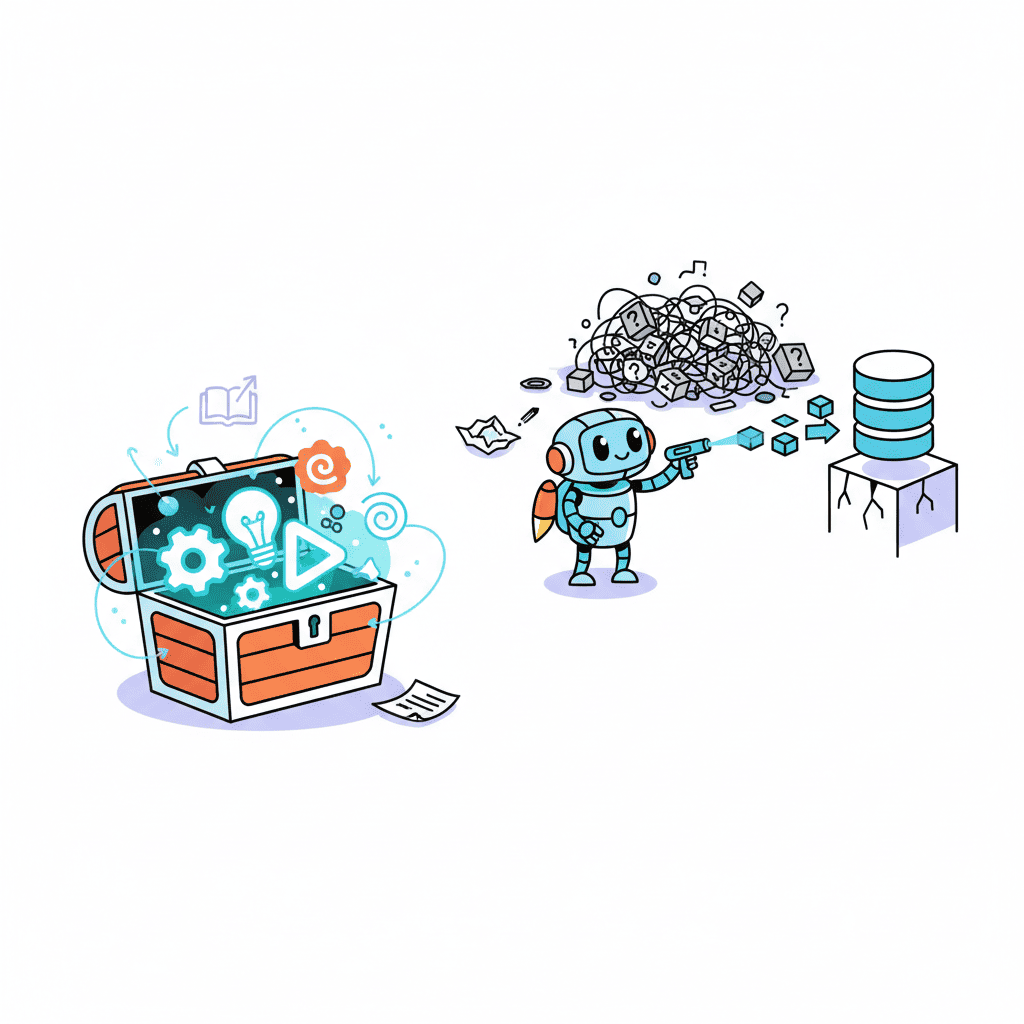
Organize by component type, because that's how you'll search for them. When you're building a new page, you think in components: "I need a hero, a features section, a pricing table, a footer." You don't think alphabetically.
Here's the folder structure I recommend:
| Category | What Goes Here | Example |
|---|---|---|
| Navigation | Navbars, sidebars, footers, breadcrumbs | Responsive navbar with dropdown |
| Hero & Landing | Hero sections, CTAs, feature grids | SaaS hero with gradient background |
| Forms | Contact, login, multi-step, validation | Multi-step wizard with progress bar |
| Data Display | Tables, charts, cards, lists | Sortable data table with filters |
| Feedback | Modals, toasts, alerts, loaders | Confirmation dialog with animation |
| Layout | Grids, page templates, responsive wrappers | Dashboard layout with sidebar |
Each prompt entry should have three things:
- The prompt itself (the actual text you send to the AI)
- Tags (component type, complexity, tech stack)
- Notes (what works, what to tweak, known quirks)
This structure mirrors how we've organized our 300+ prompt template collection — and there's a reason. It's the fastest way to find what you need mid-build. You can also pair this with an AI coding spec template to define what you're building before pulling the right prompts.
Step 3: Create Reusable Prompt Templates with Variables
This is where your library goes from "nice to have" to genuine superpower.
Raw prompts are useful. But templatized prompts — ones with variables you swap out per project — are the real game-changer. You write the prompt once, then adapt it in seconds.
Here's what a raw prompt looks like vs. a template:
Raw prompt (single-use):
Build a hero section for a SaaS project management tool called TaskFlow. Use a dark blue gradient background, white headline text, a subtitle explaining the product, and a "Start Free Trial" CTA button. Make it responsive with the image stacking below text on mobile.
Template (reusable):
Build a hero section for a {product_type} called {product_name}. Use a {background_style} background, {text_color} headline text, a subtitle explaining the product, and a "{cta_text}" CTA button. Make it responsive with the image stacking below text on mobile.
See the difference? Same quality output, but now you can stamp out hero sections for any project in under 30 seconds. No re-thinking. No forgetting that responsive detail. Just fill in the blanks.
Here are the variables worth standardizing across your library:
{product_name}— App or company name{product_type}— SaaS, e-commerce, portfolio, etc.{color_scheme}— "dark blue gradient," "light minimal," "bold red and black"{cta_text}— Button copy{tech_stack}— "React + Tailwind," "Next.js + shadcn/ui"{layout_note}— Responsive behavior
Pro tip: keep a standard set of 5-8 variables. More than that and you've built a configuration system, not a prompt template.
Want to try this yourself?
Try this prompt⌘+Enterto launch
Step 4: Build a Feedback Loop
Here's the part that separates people who have a prompt library from people who have a good prompt library: iteration.
Your prompts aren't static. The AI models update. Your design preferences change. You discover better phrasing. A prompt that generated beautiful output in December might produce something clunky in February.
So treat your prompts like code. Version them.
A dead-simple workflow:
After each use, do a 10-second assessment:
- Output was perfect? Mark the prompt as "proven." Move on.
- Output was close but needed tweaks? Note what you changed and update the template.
- Output was garbage? Flag it. Figure out why. Maybe the prompt was fine but the context was wrong. Or maybe it needs a rewrite.
I keep a simple version log in each prompt file — just a line like:
Nothing fancy. But now I can see what evolved and why. And when a model update breaks something, I can roll back.
This connects directly to the refactoring mindset we cover in our vibe refactoring guide — the same "iterate, don't rebuild" approach applies to your prompts. Once your templates are solid, the natural next step is prompt chaining — stringing multiple templates together to build complex pages section by section.
Starter Library: 10 Must-Have Frontend Prompt Templates
Alright, enough theory. Here are 10 prompt templates to kickstart your vibe coding prompt library. These cover the components you'll build most often.
1. Responsive Navbar
Build a responsive navigation bar for {product_name}. Include logo on the left, {nav_items} links centered or right-aligned, and a {cta_text} button. On mobile, collapse into a hamburger menu with smooth animation. Use {tech_stack}.
2. Hero Section
Create a hero section for {product_type}. {background_style} background, bold headline, subtitle paragraph, and a "{cta_text}" button. Add a {visual_element} on the right side. Stack vertically on mobile. Use {tech_stack}.
3. Feature Grid
Build a 3-column feature grid for {product_name}. Each card has an icon, title, and 2-line description. Cards should have subtle hover effects. Responsive: 2 columns on tablet, 1 on mobile. Use {tech_stack}.
4. Contact Form
Create a contact form with fields: {field_list}. Include validation, error messages below each field, and a submit button. Show a success toast on submission. Style with {tech_stack}.
5. Pricing Table
Build a 3-tier pricing table for {product_name}. Tiers: {tier_names}. Highlight the middle tier as "Most Popular." Include feature checkmarks, price, billing toggle (monthly/annual), and CTA buttons. Use {tech_stack}.
Want to try this one?
Try this prompt⌘+Enterto launch
6. Dashboard Layout
Create a dashboard layout with a collapsible sidebar, top header with search and user avatar, and a main content area with a {grid_layout} grid of stat cards. Responsive sidebar becomes a drawer on mobile. Use {tech_stack}.
7. Data Table
Build a data table displaying {data_type}. Include column sorting, search/filter input, pagination, and row selection with checkboxes. Show {rows_count} rows per page. Use {tech_stack}.
8. Modal / Dialog
Create a {modal_type} modal for {use_case}. Include a close button, {modal_content}, and action buttons. Add backdrop blur, smooth enter/exit animations, and trap focus inside. Use {tech_stack}.
9. Testimonial Section
Build a testimonial section with {count} customer cards. Each card shows avatar, name, role, company, and quote. Use a {layout_type} layout. Add subtle animations on scroll. Use {tech_stack}.
10. Footer
Create a footer for {product_type} with columns for {footer_sections}. Include social media icons, newsletter signup input, and copyright text. Responsive: stack columns on mobile. Use {tech_stack}.
Grab these, fill in your variables, and you've got a foundation. For deep dives into any of these, check out our specific guides on hero section prompts or form prompts.
How to Use Your Prompt Library on Fardino
Once you've built your library, putting it to work is the easy part. Open Build with Fardino →, paste your template with variables filled in, and generate.
The real workflow looks like this:
- Pick the template from your library that matches what you're building
- Fill in the variables for your current project (takes 30 seconds)
- Generate — paste the filled prompt into Fardino
- Rate and iterate — did the output nail it? Update your template notes
- Save any improvements back to your library
The compounding effect is real. After a month of this, you'll have a battle-tested library where 80% of your prompts produce great output on the first try. Compare that to typing fresh prompts every time and hoping for the best.
From Prompt Chaos to Prompt System
Let's be real: most developers treat their prompts like disposable text. Type it, use it, forget it, retype it next week with slightly different wording and wonder why the output is inconsistent.
Building a vibe coding prompt library takes maybe an hour to start. Maintaining it takes minutes per week. And the payoff — faster builds, more consistent output, less time debugging garbage — compounds with every project.
The developers who are shipping fastest in 2026 aren't the ones with the best AI models. They're the ones with the best prompt systems. A mediocre model with great prompts beats a frontier model with sloppy ones every single time.
This is the hill I'll die on: your prompt library will become the most valuable asset in your dev toolkit. Start building it today. And if you're just getting started with vibe coding, our beginner's guide will get you building your first app in 15 minutes — once you're hooked, come back and build that library.
You Might Also Like
- AI UI Prompts: 300+ Templates That Actually Work — The mega-collection of tested prompts to seed your library
- 5 Steps to Fix Any AI UI — The iteration workflow that makes your prompts better over time
- Vibe Refactoring: 20+ Prompts to Clean Up AI Code — What to do after your prompt library generates the first draft
Frequently Asked Questions
What is a vibe coding prompt library?
A vibe coding prompt library is a personal, organized collection of AI prompts you've tested and saved for reuse. Instead of writing new prompts from scratch every time, you pull from your library, fill in project-specific variables, and generate consistent UI components faster.
How do I organize my AI coding prompts?
Organize by component type — navigation, hero sections, forms, data display, feedback (modals/toasts), and layout. Within each category, keep the prompt text, tags for searchability, and notes on what works. A simple folder of markdown files works fine.
How many prompts do I need to start a library?
Start with 10. Cover the components you build most often: navbar, hero, feature grid, form, pricing table, dashboard layout, data table, modal, testimonials, and footer. You can expand from there as you encounter new component types.
Should I version control my prompts?
Yes. AI models change, and prompts that worked last month might need tweaking. Keep a simple version log noting what you changed and why. A markdown file with v1, v2 notes is plenty — you don't need Git branches for this (though you can if you want).
Can I share my prompt library with my team?
Absolutely. Shared prompt libraries are one of the fastest ways to level up an entire team's vibe coding output. Put it in a shared repo or Notion workspace, agree on the variable naming convention, and watch consistency improve across the board.
Written by the Fardino Team. We build AI tools for frontend developers. Build with Fardino →




