Chat UIs are everywhere. Your SaaS has one. Your support site needs one. And if you're building anything with AI in 2026, you're probably staring at a blank prompt wondering how to generate a chat interface that doesn't look like it was built during the React class component era.
I've built over 25 AI chat interfaces with prompts. Most of the early ones? Absolute garbage. Bubble messages that looked like inflated balloons. Streaming that janked. Typing indicators that screamed "I'm a bot."
But here's the thing—once you nail the right ai chat interface prompts, building conversational UIs becomes almost trivial. Copy, paste, ship. For more UI prompt templates across all component types, check out our complete AI prompt templates collection.
Key Takeaways:
- Generic prompts generate generic chat UIs—be specific about message styles, streaming, and states
- Always include typing indicators, streaming responses, and tool displays separately (not in one mega-prompt)
- The anatomy of a great chat interface has 6 core parts—nail each one
In This Article
- The Anatomy of a Great AI Chat Interface
- Message Bubble Prompts
- Prompt Input Component
- Streaming Response Prompts
- Typing & Loading States
- Tool Call & Action Displays
- Complete Chat Interface
- Common Mistakes
- FAQ
The Anatomy of a Great AI Chat Interface
Before you throw a prompt at your AI, let's break down what actually makes a chat UI feel good. Not just functional—good.
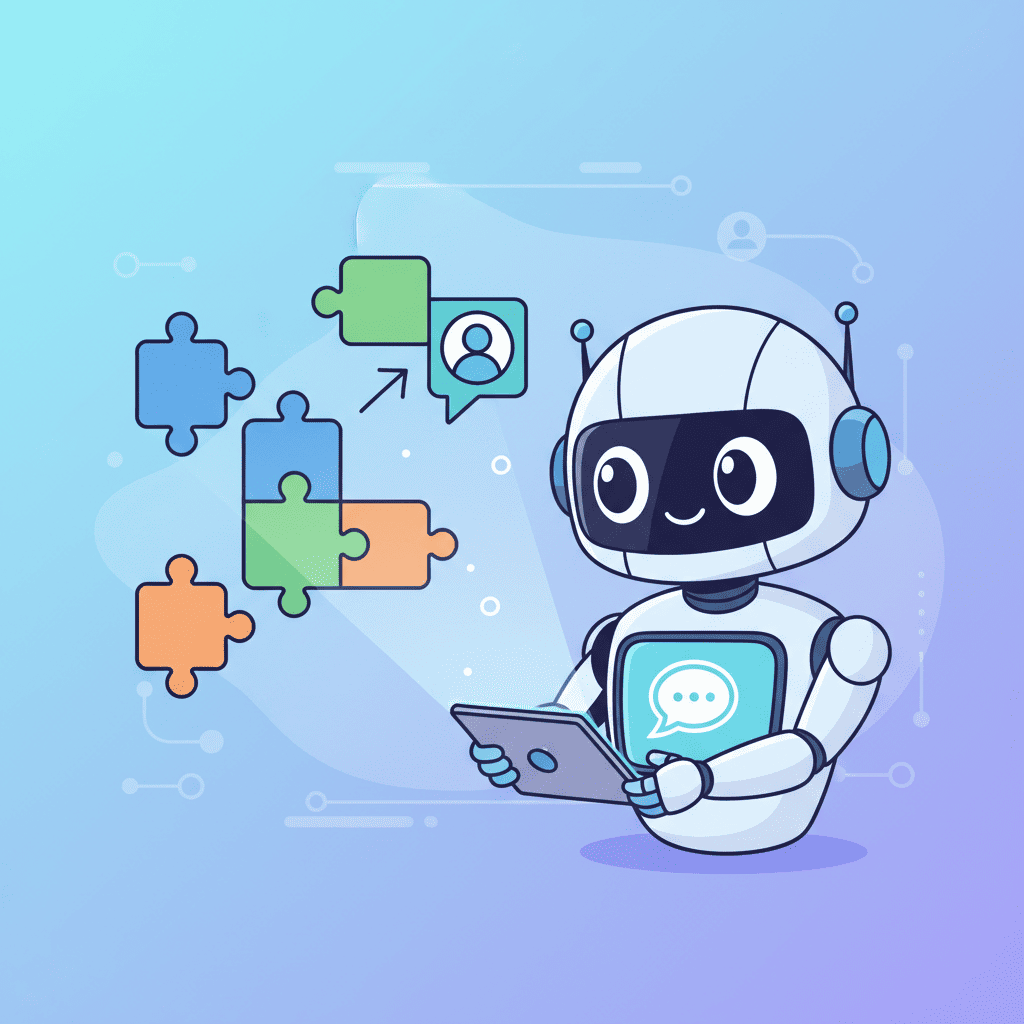
Every modern conversational interface has these parts:
| Component | Purpose | Why It Matters |
|---|---|---|
| Message bubbles | Display conversation history | Differentiates user vs AI, readability |
| Input area | Capture user prompts | Accessibility, multi-line support |
| Streaming display | Show tokens as they arrive | Reduces perceived latency by 60%+ |
| Typing indicator | Show AI is "thinking" | Prevents rage-clicking |
| Tool displays | Show when AI calls functions | Transparency, builds trust |
| Reasoning indicators | Optional chain-of-thought | Advanced UIs, debugging |
Miss any of these and your chat UI will feel off. Users might not know why it feels weird, but they'll feel it.
Here's my hot take: Most AI chat prompts fail because they try to generate everything at once. Don't do that. Build each component separately, then assemble.
Which Complexity Level Do You Need?
Not every chat needs the works. Here's how to scope it:
| Chat Type | Components Needed | Use Case | Prompt Complexity |
|---|---|---|---|
| Simple | Bubbles + Input | FAQ bot, basic support | Low - single prompt |
| Standard | + Streaming + Typing | SaaS chat, customer service | Medium - 2-3 prompts |
| Advanced | + Tool calls + Reasoning | AI agents, coding assistants | High - 4-5+ prompts |
| Full-featured | All 6 components | ChatGPT-style interface | Very high - modular build |
Start simple and add complexity as needed. Don't build an advanced UI for a FAQ bot.
Message Bubble Prompts: User vs AI Messages
This is the foundation. Get it wrong and everything else suffers.
Basic Message Bubble Prompt
Create a React chat message component with these specs:

- Two variants: "user" and "assistant"
- User messages: right-aligned, blue-500 bg, white text, rounded-2xl rounded-br-md
- Assistant messages: left-aligned, gray-100 bg, gray-900 text, rounded-2xl rounded-bl-md
- Show avatar (user initial or robot icon) on the outer edge
- Include timestamp below message in gray-500 text-xs
- Max-width 80% of container
- Support markdown rendering in assistant messages
- Use Tailwind CSS
- TypeScript interface for props
Want to try this yourself?
The key details here? Those rounded corner specs (rounded-br-md for user, rounded-bl-md for assistant) create the "tail" effect that makes messages feel native. Without them, you get boring pill shapes.
Pro Tip: Code Block Support
If your chat handles code (and in 2026, it probably does), add this to your prompt:
Add syntax-highlighted code blocks using a light theme.
Code should have:
- Copy button in top-right corner
- Language label in top-left
- Horizontal scroll for long lines
- Monospace font (JetBrains Mono or similar)
I've seen too many chatbot ui prompts that forget code formatting. Then you're debugging at 2am wondering why your code looks like a wall of text.
Prompt Input Component Prompts
The input area is where users spend most of their attention. It needs to feel effortless.

Modern Chat Input Prompt
Build a chat input component with:

- Multi-line textarea that auto-grows (max 200px height)
- Send button that disables when empty
- Keyboard shortcut: Enter to send, Shift+Enter for new line
- Character counter showing X/4000 when over 3000 chars
- Placeholder: "Ask anything..."
- Clear button appears when typing
- Microphone button for voice input (optional, show icon)
- Attachment button with file icon
- Dark mode support
- Focus ring on tab navigation
- Loading state that shows spinner in send button
Want to try this yourself?
That auto-grow behavior? Critical. Fixed-height textareas feel broken when users write longer prompts.
Streaming Response Prompts: Token-by-Token
This is where most chat UIs go from "functional" to "feels like magic."
Streaming responses—showing text as the AI generates it—reduces perceived latency dramatically. Users don't wait for a complete response; they see progress immediately.
Streaming Text Display Prompt
Create a streaming text component that:

- Accepts a stream of text chunks as prop
- Renders each character with subtle fade-in (not cursor blink)
- Handles markdown parsing in real-time
- Shows a subtle pulsing dot at the end while streaming
- Smoothly transitions when streaming completes
- Handles code blocks mid-stream (don't break syntax highlighting)
- Performance: use CSS animations, avoid re-renders per character
And honestly? This is the component that separates amateur chatbots from professional ones. The pulsing dot (not a blinking cursor—that's 2015) gives users a clear signal that more content is coming.
If you want to dive deeper into animations for AI UIs, check out our AI Animation Prompts guide for micro-interactions that feel polished.
Typing Indicator & Loading State Prompts
Before the stream starts, you need to show that something is happening. Enter the typing indicator.
Typing Indicator Prompt
Build a typing indicator component:

- Three animated dots in a horizontal row
- Each dot pulses with 0.2s delay offset (creates wave effect)
- Dots are 8px, gray-400, spaced 4px apart
- Contained in a message bubble matching assistant style
- Include "thinking" or custom label option
- Fade in when appearing, fade out when done
- Accessible: aria-live="polite" with screen reader text
This tiny component makes your whole chat feel responsive. Without it, users wonder if their message even sent.
Pro Variant: Thinking/Reasoning Indicator
For more advanced AI apps that show chain-of-thought reasoning:
Create a reasoning indicator that shows AI thinking process:

- Expandable "Thinking..." header with chevron
- When expanded, show reasoning steps as they arrive
- Each step: numbered, gray-500 text, smaller font
- Collapse by default, user can expand to see full reasoning
- Smooth height animation on expand/collapse
- Maximum 3 visible steps when collapsed, "+N more" if more
This is becoming standard for agent-style UIs. If you're building agentic coding features, users expect transparency into the AI's process.
Tool Call & Action Display Prompts
Modern AI chat isn't just text. When the AI searches the web, queries a database, or calls an API, users should see it.
Tool Call Display Prompt
Create a tool call component that shows AI actions:

- Compact inline display within message stream
- Icon + tool name + status (running/complete/error)
- Running: subtle pulse animation, gray bg
- Complete: green checkmark, green-50 bg
- Error: red X, red-50 bg, expandable error details
- Shows duration when complete (e.g., "2.3s")
- Optionally shows truncated input/output
- Expand to see full JSON payload
Want to try this yourself?
This is the "trust layer" of your UI. When users see what the AI is doing, they trust it more. And honestly? It looks cool.
When users trigger actions or need confirmations, you'll often pair tool calls with modal and dialog prompts for a polished interaction pattern.
Complete AI Chat Interface Prompt
Now for the full assembly. Once you've built individual components (or if you want it all in one shot), here's a comprehensive prompt:
Build a complete AI chat interface with these features:

Layout:
- Full-height container with flex column
- Messages area scrolls, input fixed at bottom
- Auto-scroll to bottom on new messages (with manual scroll override)
- Empty state with suggested prompts as clickable chips

Messages:
- User messages: right-aligned, blue-500 rounded bubbles
- AI messages: left-aligned, gray-100 rounded bubbles
- Support markdown, code blocks with syntax highlighting
- Timestamps on hover

Input:
- Auto-growing textarea, Enter to send, Shift+Enter newline
- Send button with loading spinner state
- Disabled when empty or sending

Streaming:
- Token-by-token display with subtle animation
- Pulsing indicator at end while streaming
- Tool calls shown inline with status

States:
- Typing indicator (three dots) while waiting
- Error state with retry button
- Connection status indicator

Styling:
- Tailwind CSS, responsive (works on mobile)
- Light and dark mode support
- Smooth transitions throughout
This prompt alone should give you a production-ready starting point. But here's my strong opinion: don't use it first. Build the components individually, understand what each does, then assemble. You'll debug faster.
If you're new to prompting for components, our prompt engineering guide covers the 7 parts every good prompt needs.
Common Mistakes and How to Fix Them
I've made all of these mistakes. Learn from my suffering.
Mistake #1: Fixed-Height Message Containers
The problem: Messages get cut off or create weird scroll behavior.
The fix: Use flex-grow and overflow-y-auto on the messages container, not fixed heights.
Mistake #2: Forgetting Mobile
The problem: Chat looks great on desktop, unusable on mobile.
The fix: Add these to your prompts:
- Full-width input on mobile
- Touch-friendly send button (min 44px tap target)
- Messages take max-width: 85% on mobile
Mistake #3: No Loading States
The problem: User clicks send, nothing happens for 500ms, they click again.
The fix: Always include typing indicator + disabled send button during sending. Always.
Mistake #4: Scroll Jank on New Messages
The problem: Auto-scroll interrupts users reading old messages.
The fix: Only auto-scroll if user is already at bottom. Otherwise, show "New messages" button.
Mistake #5: Ignoring Accessibility
The problem: Screen readers can't follow the conversation.
The fix: Add role="log", aria-live="polite", and proper focus management.
Our accessible UI prompts guide has the full checklist for WCAG compliance.
Mistake #6: Silent Notifications
The problem: User sends a message but doesn't know it failed—or succeeded.
The fix: Add clear feedback for every action. See our notification prompts for toast patterns that work.
Try It: Build Your Own AI Chat
Ready to build? Here's your workflow:
- Start with message bubbles—get the visual foundation right
- Add the input component with proper keyboard handling
- Wire up streaming display with typing indicators
- Assemble into a full layout with scroll behavior
- Add tool displays and error states last
Each step is its own prompt. Don't try to do it all at once.
You Might Also Like
- AI Form Prompts: 35+ Templates for React Forms - Chat inputs share a lot with form components—reuse patterns
- AI UI Prompts: 300+ Templates That Work - The complete collection of every UI prompt you'll need
- AI Onboarding Flow Prompts - Chat and onboarding often overlap—welcome messages, guided flows, and user setup
Frequently Asked Questions
How do I make AI chat streaming work in React?
Use state that appends chunks as they arrive. Libraries like Vercel AI SDK handle this with hooks like useChat. Your UI just needs to display the updating string—the streaming logic lives in your backend/SDK.
What's the best library for chat UI components?
For ready-made components, shadcn/ui has dedicated AI components (AI Message, AI Prompt Input) that work great. But honestly, prompting your own gives more control and teaches you more about state management.
How many messages should I show in chat history?
Display all messages but virtualize if you have 100+ for performance. Users expect to scroll back. Pagination breaks the conversational flow.
Should I use WebSockets or SSE for streaming?
Server-Sent Events (SSE) is simpler and works for most chat UIs. WebSockets add complexity—only use them if you need bidirectional communication (like real-time multiplayer features).
How do I handle file attachments in chat UI?
Add an attachment button to your input component with drag-and-drop support. Show file previews inline with progress indicators during upload. For the AI response, display attachments as clickable thumbnails or file cards. Always include file type validation and size limits—users will try to upload anything.
Written by the Fardino Team. We build AI tools for frontend developers. Try Fardino free →